The quickest way to learn how to connect airpods to apple tv is to use the connection Apple has already made for you. If your AirPods were set up with an iPhone, iPad or Mac on the same Apple Account as the Apple TV, they are effectively paired already, and connecting takes seconds in Control Center. This guide covers that fast route first, then the manual Bluetooth pairing for a borrowed or second pair, then Audio Sharing for two listeners, and finally the fixes for the faults that stop it working.
The fast way: Control Center, same Apple Account
Apple’s Apple TV 4K guide puts the condition in one sentence: you can send audio to Apple TV 4K to compatible AirPods or Beats when you are signed in on the Apple TV with the same Apple Account associated with the headphones. When that holds, do this. Put your AirPods in your ears, or open the case near the TV. On the Siri Remote, press and hold the TV button to open Control Center. Select the audio controls, then select your AirPods. The TV speakers go quiet and the sound moves to your ears: Apple notes that when you connect headphones to Apple TV 4K, any other device speakers are turned off.
There is a shorter version once the habit forms. Apple’s guide points out that if you put your headphones on while the Apple TV is on and your profile is active, an alert can appear prompting you to connect them with a press of the remote. If that prompt annoys you, the same guide names the off switch: Settings, Remotes and Devices, Bluetooth, then turn off Suggest Nearby AirPods.
The manual way: pair in Bluetooth settings
Use this route for a pair the Apple TV has never met: a partner’s AirPods, or any set the Control Center list refuses to show.
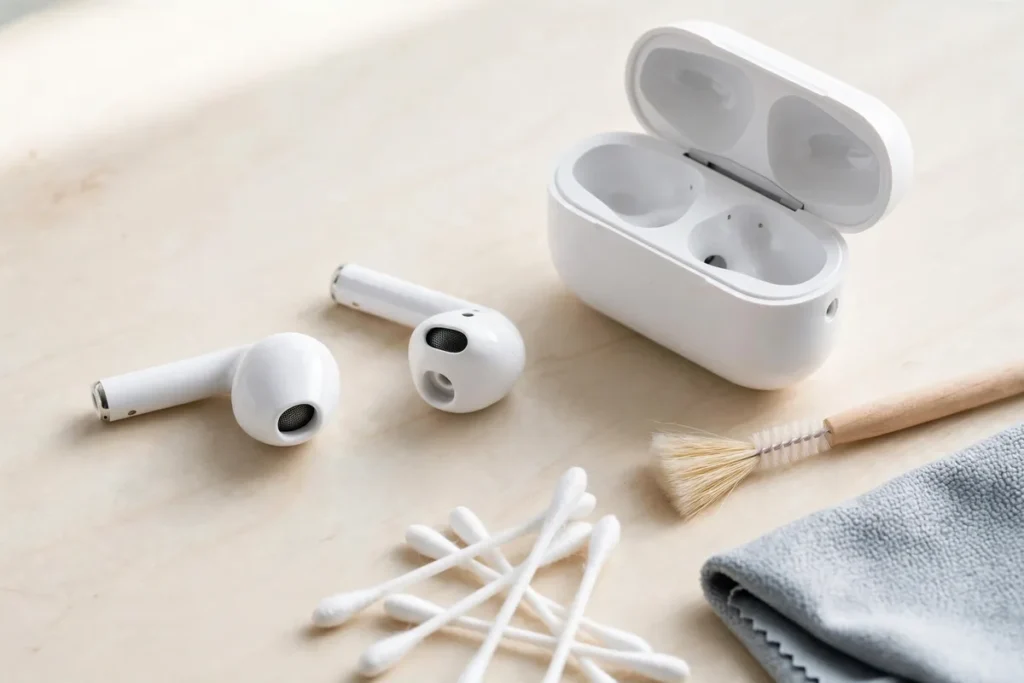
Step 1: put the AirPods in pairing mode. For earbuds, place both buds in the case, open the lid, and press and hold the setup button on the case until the status light flashes white. For AirPods Max, press and hold the noise control button until the status light flashes white.
Step 2: on the Apple TV, go to Settings, Remotes and Devices, Bluetooth. The TV starts searching straight away.
Step 3: wait for the AirPods to appear under Other Devices, then select them. A connected entry appears in the list, and the audio switches to them.
Step 4: start a film or show and confirm the sound is in your ears, not the room. From now on this pair reconnects from Control Center like any other, without the setup button.
One caution: a manually paired set stays paired. If the AirPods belong to a guest, remove them afterwards in the same Bluetooth menu.
Share the film: two pairs at once
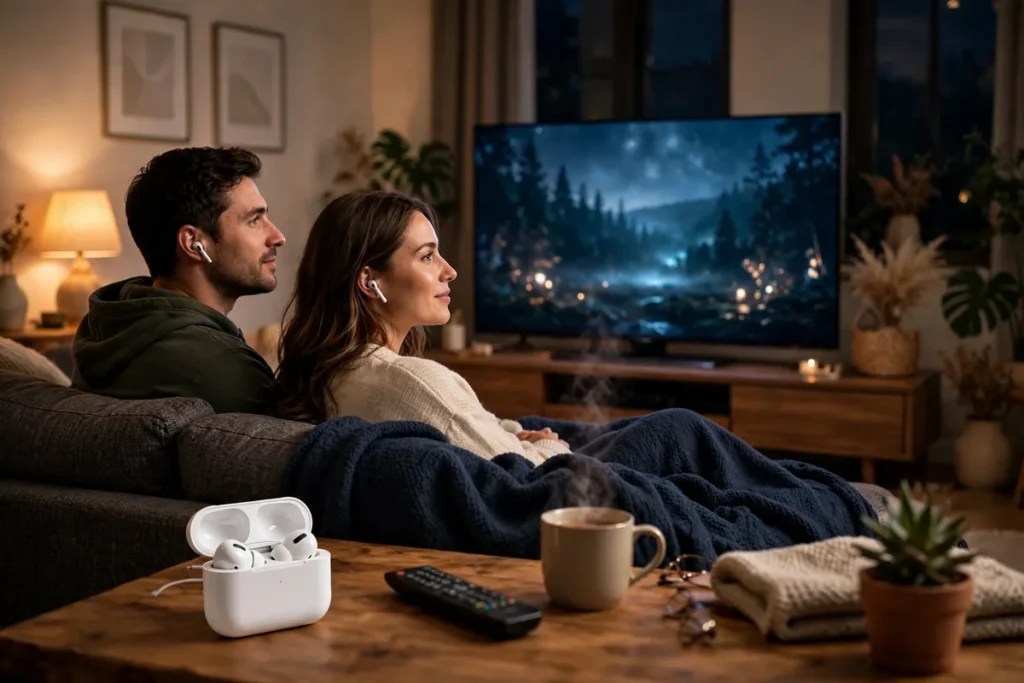
Apple TV 4K can send audio to two pairs of compatible AirPods or Beats at once, which makes late-night film watching work for couples. Apple’s own steps run like this. Connect the first pair, using either route above. While a film or song is playing, press and hold the TV button to open Control Center, then navigate to the headphones controls. Select Share Audio, then follow the onscreen instructions to pair the second set, usually by bringing it near the TV in its open case. Both pairs play the same audio, and each listener sets their own volume.
Know the two limits. Apple’s guide states that Share Audio is not supported on Apple TV HD, and that personalised spatial audio is not available when two pairs are connected. If Share Audio does not appear, you are almost certainly on an Apple TV HD, or the first pair is not yet connected, because the option only shows once one set is live.
Controls worth knowing once you are connected
Control Center is also where the listening controls live after pairing. Open it with a long press of the TV button, go to the headphones icon, and on Pro and Max models you can switch noise control between Noise Cancellation, Transparency and Off without reaching for a phone. Transparency lets the room back in without taking a bud out. With two pairs connected, each set keeps its own volume level. When you finish, select the TV speakers in the same audio menu and the sound returns to the room. Readers who move AirPods between devices will find the same account logic in our guide to how to connect earbuds to a MacBook Air.
Good pairs for TV listening
Any current AirPods model works with Apple TV, but they suit the job differently: a sealed Pro pair keeps quiet scenes clear at low volume, the standard model is light enough to forget, and the Max is the closest thing to a private cinema.


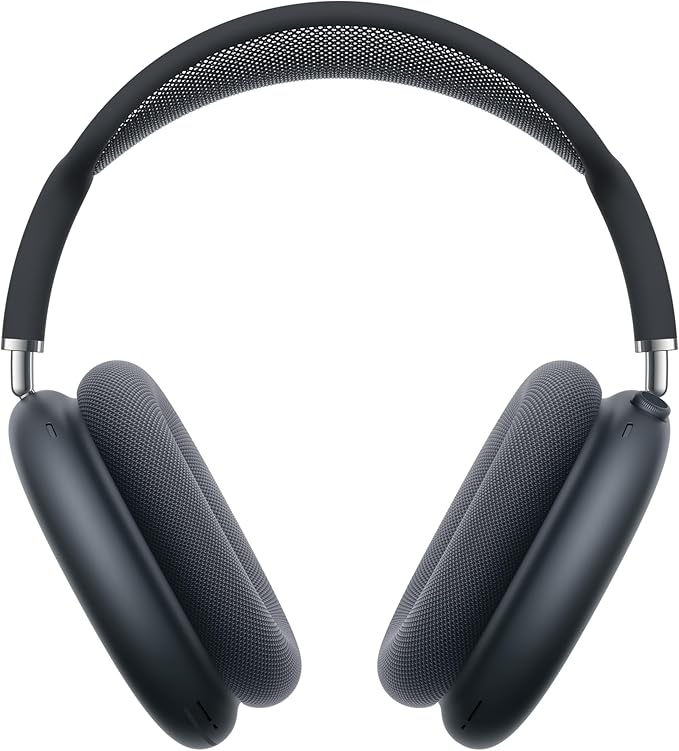
Our AirPods Max review covers the spatial audio side in depth, our AirPods 4 review covers the open-fit comfort case, and our roundup of the best wireless headphones for TV watching shows the non-Apple options if your household is not all-in on AirPods.
When it will not connect: the fixes that work
The AirPods do not appear. Work the list in order: check the Apple TV and AirPods share an Apple Account, charge the case, bring the open case close to the TV, and close the Bluetooth menu on any nearby phone that keeps grabbing them. Then try the manual route above. Still nothing, restart the Apple TV from Settings, System, Restart, and try once more.
Sound still comes from the TV. The Apple TV has not switched its output. Open Control Center, go to the audio controls, and select the AirPods explicitly; a paired entry is not the same as a selected one. If a soundbar is in the chain, this selection is also what silences it, per Apple’s note that connecting headphones turns other speakers off.
Voices lag behind lips. Run Wireless Audio Sync: Settings, Video and Audio, Wireless Audio Sync, then follow the prompts with your iPhone near the TV so it can hear the test tones and measure the delay. Keep a clear path between the case and the TV afterwards, since walls and bodies both weaken the link.
One bud is silent, or the pair keeps dropping. Put both buds back in the case, close the lid, wait half a minute, and reconnect. If it keeps misbehaving, forget it in Settings, Remotes and Devices, Bluetooth, then pair again from pairing mode. A pair that drops on every device needs Apple’s own reset for that model, and possibly service.
Frequently asked questions
Why do my AirPods not appear on Apple TV?
The usual cause is an account mismatch: the quick Control Center route works when the Apple TV is signed in with the same Apple Account as the AirPods. Check that first, charge the case, and bring the open case close to the TV. If they still do not appear, pair manually in Settings, Remotes and Devices, Bluetooth, with the AirPods in pairing mode, and forget and re-pair them on a nearby phone if that phone keeps claiming them.
Can two people listen to Apple TV with AirPods at the same time?
Yes, on Apple TV 4K. Connect the first pair, press and hold the TV button on the Siri Remote to open Control Center, open the headphones controls, select Share Audio, and follow the onscreen instructions to pair the second set of compatible AirPods or Beats. Each listener controls their own volume. Apple notes that Share Audio and Spatial Audio are not supported on Apple TV HD, and personalised spatial audio is not available while two pairs are connected.
Do TV speakers keep playing when AirPods are connected to Apple TV?
No. Apple’s Apple TV 4K guide states plainly that when you connect headphones to Apple TV 4K, any other device speakers are turned off. That silence is the point of the feature: the film plays in your ears only. Disconnect the AirPods in Control Center and the sound returns to your TV speakers or soundbar.
How do I fix AirPods audio that is out of sync with Apple TV?
Run Apple’s Wireless Audio Sync calibration: on Apple TV go to Settings, Video and Audio, Wireless Audio Sync, and follow the prompts, holding your iPhone near the TV when asked so it can listen and measure the delay. Also keep the AirPods reasonably close to the Apple TV and move wireless routers or other Bluetooth transmitters out of the direct path if dropouts come with the delay.
Can I use AirPods Max with Apple TV?
Yes. AirPods Max connect to Apple TV the same way as the earbuds: through Control Center when they share your Apple Account, or manually in Settings, Remotes and Devices, Bluetooth. On Apple TV 4K they also support spatial audio for compatible films and shows, which makes them the most cinema-like option of the current AirPods range for a single listener.

I am the founder of Sound Mavericks, where I provide the polite truth about audio equipment. I started this site because consumer electronics reviews are often too technical. Instead of using a silent lab, I test headphones, earbuds, and Bluetooth speakers in the real world – like on a noisy subway or in a busy coffee shop.
To stay independent, I buy my own review units (mostly from the United States) rather than accepting free gifts from brands. Once I finish testing a product, I sell it locally to our community. My goal is to help you understand sound quality, active noise cancellation (ANC), and battery life without the marketing hype.