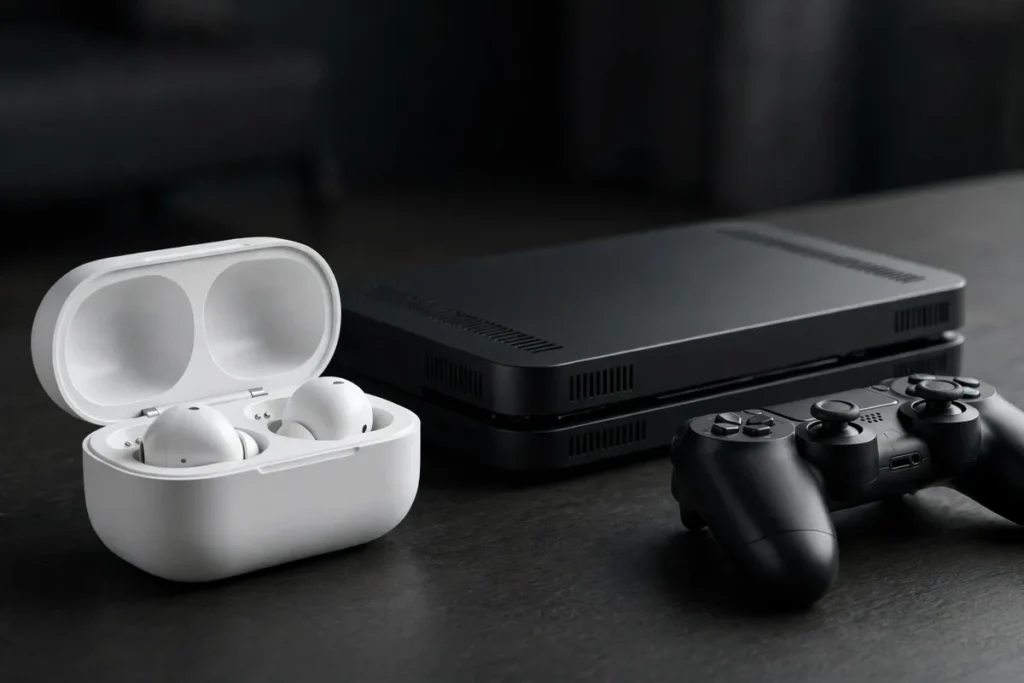
Working out how to connect AirPods to a PS4 starts with one awkward fact: the PS4 does not pair AirPods natively. Sony reserved the console’s Bluetooth for DualShock 4 controllers and licensed headsets, so while your AirPods may show up in the device scan, the console refuses the audio connection every time. There is no settings trick that changes this. What does work is putting something between the console and the AirPods: a USB Bluetooth adapter plugged into the PS4, the PS Remote Play app on a device your AirPods already trust, or the Bluetooth in the TV the console is plugged into. This guide walks through all three routes, with the honest limits of each, because the routes differ most on one point that matters to a lot of players: the microphone.
Route 1: a USB Bluetooth adapter (the route most people should use)
An adapter gives the PS4 the Bluetooth audio support it never had. The AirPods pair to the adapter, the adapter plugs into the console, and the PS4 treats the whole arrangement as a USB headset. Setup takes a few minutes and survives restarts, so it is a fit-and-forget fix.
- Plug a PS4-compatible USB Bluetooth audio transmitter (Bluetooth 5.0 or higher, A2DP) into a front USB port on the PS4.
- Put the adapter into pairing mode, usually by holding its button until the LED flashes.
- Open the AirPods case lid with the buds inside and hold the case button until the status light flashes white.
- Wait for the adapter LED to turn solid. The AirPods are now paired to the adapter, not to the PS4 directly.
- On the PS4, go to Settings, then Devices, then Audio Devices, and set Output Device to the USB headset or adapter entry.
- Set Output to Headphones to All Audio, so game sound and chat audio both route to the AirPods.
The limitation: standard adapters transmit game audio one way. The AirPods microphone does not work for party or game chat through most of them. Chat requires an adapter kit with a separate mini microphone plugged into the DualShock 4 controller, or one of the other two routes below. Some latency is also inherent to Bluetooth audio, though a low-latency adapter keeps it small. If you are new to pairing earbuds in general, our guide on how to pair Bluetooth earbuds covers the pairing-mode basics this route relies on.
Route 2: the PS Remote Play app (the only route with a working microphone)
Remote Play streams the PS4’s picture and sound to a phone, tablet or computer. Because the AirPods pair to that device instead of the console, the device handles both directions of audio, and that makes this the one route where your AirPods microphone works for voice chat.
- Pair the AirPods to a phone, tablet or computer in the normal way.
- Install the PS Remote Play app on that device and sign in with the same PlayStation Network account as the PS4.
- On the PS4, enable Remote Play under Settings, then Remote Play Connection Settings, and keep the console on the same network.
- Connect from the app. The game streams to the device and its audio plays through the AirPods paired to that device.
- Tap the microphone icon in the app to enable voice chat through the device and the AirPods.
The limitation: the route depends on your network. Weak Wi-Fi adds audio and input lag and lowers the stream quality, so it suits slower-paced games and chat-first sessions better than competitive play. Wiring the PS4 to the router helps more than any setting in the app.
Route 3: pair the AirPods to your TV
If your TV has Bluetooth audio output, it can take the PS4’s sound over HDMI and pass it to the AirPods itself. The console never knows the AirPods exist, which is exactly why it works.
- Confirm the TV has Bluetooth audio output. Most modern smart TVs do.
- Leave the PS4 connected to the TV over HDMI as normal, so picture and sound reach the TV first.
- Open the TV’s Bluetooth settings, put the AirPods in pairing mode with the case open and the case button held until the light flashes white, and pair them to the TV.
- Set the TV sound output to the Bluetooth device. Game audio now plays from the TV into the AirPods.
The limitation: this route is audio-only. There is no microphone path back to the PS4 at all, so party chat is impossible without a separate controller-connected microphone. Latency and quality depend entirely on the TV’s Bluetooth implementation, and some TVs handle it noticeably better than others.
The microphone question, settled route by route
Most people searching for this connection actually want two things: game audio in their ears and their voice in the party chat. No route gives you both for free. The adapter route delivers game audio with low fuss and no mic. The TV route delivers game audio and no mic, with the fewest parts. Remote Play is the only route where the AirPods microphone works, because your phone or computer is doing the audio work in both directions, and its price is streaming lag. Players who chat every night tend to land on a different answer altogether, a headset built for the console; our best PC gaming headset coverage explains what a proper boom microphone buys you, and most of those models work on a PS4 controller’s 3.5mm jack as well.
The adapter this guide is built around
Route 1 needs the right class of adapter: a USB Bluetooth 5.0 audio transmitter that is plug-and-play with the PS4 and built for earbuds like the AirPods. The AudioStick below is the verified example we checked for this guide. Its card also carries the route’s honest limitation in print, because it applies to this product exactly as it applies to the rest of its class.

Why you: It is a USB Bluetooth 5.0 low-latency audio transmitter made for consoles, marketed for PS5 and PS4 and optimised for AirPods and AirPods Pro. Plug it into the console, pair the buds to it, and route 1 above is done.
Trade-off: It is a one-way transmitter. It carries game audio to your AirPods, but the AirPods microphone does not carry back for party chat. If chat matters, use the Remote Play route or add a separate controller microphone.
Any AirPods model works with these routes, since the buds never pair with the console itself. If you are choosing a pair for the job, our AirPods 4 with ANC review covers the current open-fit option; the pairing steps above stay the same whichever model you own.
Frequently asked questions
Can you connect AirPods directly to a PS4?
No. The PS4 reserves its Bluetooth for DualShock 4 controllers and licensed headsets. AirPods may appear in the device scan, but the console refuses the audio connection, so you need an adapter, the Remote Play app, or your TV as the go-between.
Will the AirPods microphone work for PS4 party chat?
Only through the PS Remote Play route, where your phone or computer handles both directions of audio. The USB adapter and TV routes carry game audio one-way, so chat needs a separate microphone, such as a mini-mic plugged into the DualShock 4.
What kind of adapter do you need to connect AirPods to a PS4?
A PS4-compatible USB Bluetooth audio transmitter, Bluetooth 5.0 or higher with A2DP support. It plugs into a front USB port, the AirPods pair to the adapter rather than the console, and you then select the adapter as the output device in the PS4 audio settings.
Does this work with AirPods Pro and AirPods Max?
Yes. All three routes pair the AirPods with something other than the console itself, so they work the same way for AirPods, AirPods Pro and AirPods Max.
Why is there a delay between the picture and the sound?
Bluetooth audio always adds some latency. A low-latency adapter keeps it small enough for most games, the TV route depends on how fast your TV’s Bluetooth output is, and Remote Play adds network lag on top, which varies with your Wi-Fi.

I am the founder of Sound Mavericks, where I provide the polite truth about audio equipment. I started this site because consumer electronics reviews are often too technical. Instead of using a silent lab, I test headphones, earbuds, and Bluetooth speakers in the real world – like on a noisy subway or in a busy coffee shop.
To stay independent, I buy my own review units (mostly from the United States) rather than accepting free gifts from brands. Once I finish testing a product, I sell it locally to our community. My goal is to help you understand sound quality, active noise cancellation (ANC), and battery life without the marketing hype.