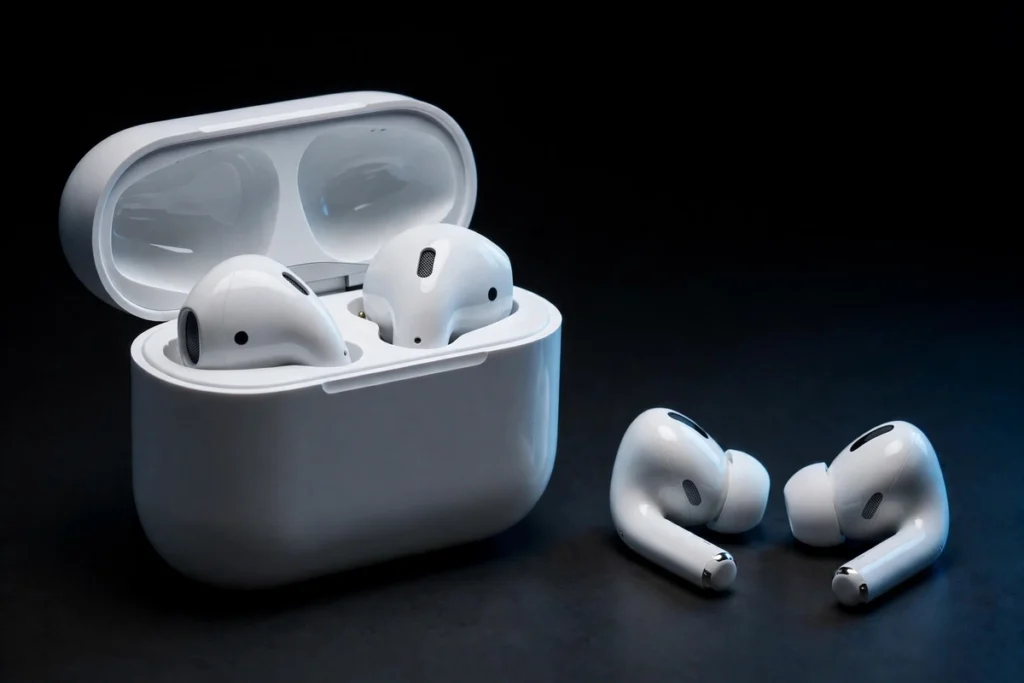
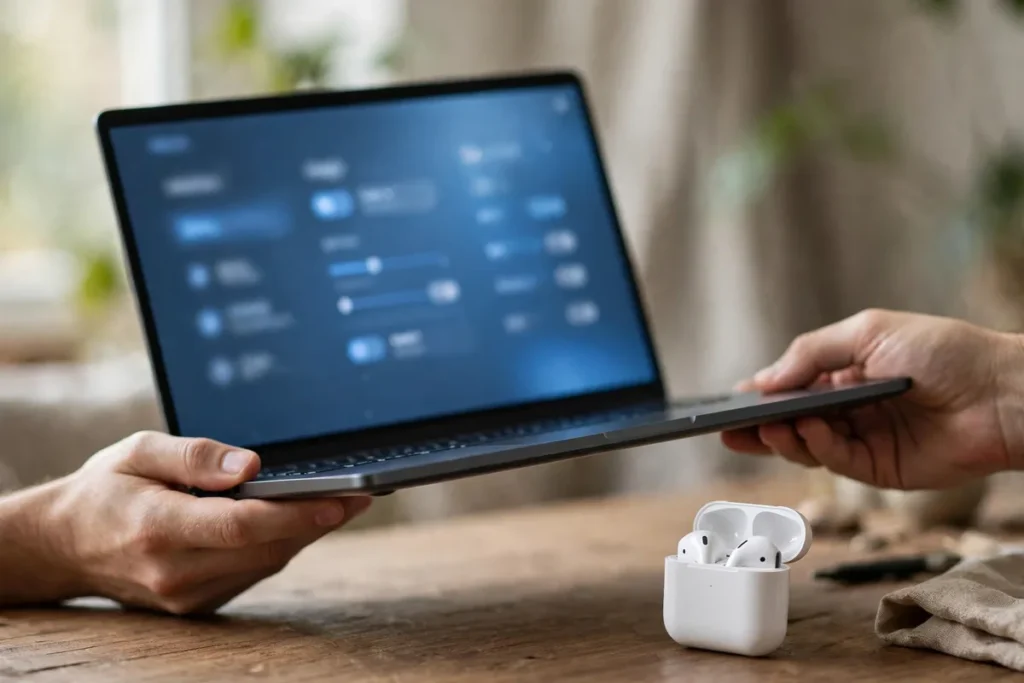
To connect earbuds to a MacBook Air, put the earbuds in pairing mode, then open System Settings, go to Bluetooth on the Mac, and choose Connect next to the earbuds’ name under Nearby Devices. That is the whole job for most brands. AirPods already set up with your iPhone skip even that: they wait in the Sound menu of Control Center. The steps below cover both routes, the brand details that trip people up, and the fixes for the failures that actually happen.
Before you start
Three checks save most failed attempts. Charge the earbuds and case first, because a nearly flat case often will not enter pairing mode. Turn Bluetooth off on your phone for the first pairing, because many earbuds connect to the last device they used and never appear on the Mac. Finally, sit the case within a metre of the MacBook Air with the lid open. Our general guide on how to pair Bluetooth earbuds covers the same ground for phones and tablets.
Step by step: pair earbuds with a MacBook Air
Step 1: open Bluetooth settings. Click the Apple menu in the top-left corner, choose System Settings, then click Bluetooth in the sidebar. Make sure the Bluetooth toggle is on. Leave this window open for the rest of the process.
Step 2: put the earbuds in pairing mode. This differs by brand and the next section gives the method for AirPods, Bose, JBL, Samsung and others. The sign you have it right is a flashing light on the case, or a voice prompt saying the buds are ready to pair.
Step 3: connect on the Mac. Look under Nearby Devices in the Bluetooth window. When your earbuds appear, click Connect beside the name. After a few seconds the buds move to the My Devices list marked Connected, and audio switches over.
Step 4: test with sound. Play a song or a video. If audio still comes from the laptop speakers, click Control Center in the menu bar, choose Sound, and select the earbuds as the output. Pairing and output selection are separate things on macOS, and this mismatch causes most reports of earbuds that connect but stay silent.
Pairing mode by brand
AirPods and AirPods Pro. Put both buds in the case and open the lid. For AirPods Pro 3 and AirPods 4, double-tap the front of the case until the status light flashes white. For older models, press and hold the setup button on the back of the case until the light flashes white. If the AirPods were set up with your iPhone on the same Apple account, they may already sit in the Mac’s Sound menu and need no pairing at all.
Bose. With the buds in the open case, press and hold the button on the back of the case until the earbud status lights blink blue. Bose buds also announce pairing mode by voice. If they keep grabbing your phone instead, use the Bose app on the phone to disconnect, then try the Mac again.
JBL. Take both buds out of the case. On most JBL models, tap and hold the touch area on either bud for about five seconds, or take the buds out while the case stays open so they enter pairing automatically when they cannot find a known device. A flashing blue light means they are ready.
Samsung Galaxy Buds. Put both buds in your ears or leave them in the open case, then touch and hold both earbuds for a few seconds until you hear the pairing sound. Galaxy Buds favour Samsung phones, so if a Galaxy phone is nearby it may claim them first. Switch that phone’s Bluetooth off during setup.
Sony, Jabra, EarFun and most other brands. The pattern is near-identical: buds in the open case, hold the case button or the touch panels until the light changes, then connect on the Mac. If there is no button, taking the buds out of a case with the lid open usually starts pairing when no known device is in range.
Set the earbuds as output and microphone
Pairing alone does not decide what your apps use. Open System Settings, then Sound. Under Output, choose your earbuds. Under Input, choose them again if you want their microphone on calls, rather than the MacBook Air’s built-in array. Zoom, Teams, Google Meet and FaceTime each keep their own speaker and microphone choices inside their settings, so confirm the earbuds there too before a meeting starts. A common trap: the earbuds are selected for output but the call app still uses the laptop mic, which sounds distant to everyone else.
The zero-friction option: AirPods Pro 3
If you pair earbuds with Apple devices often, AirPods remove most of the steps above. Set them up once with an iPhone and they appear on every Mac and iPad on the same Apple account, switching as you change device. That is the one product recommendation in this guide, and it is there because the pairing experience itself is the topic.
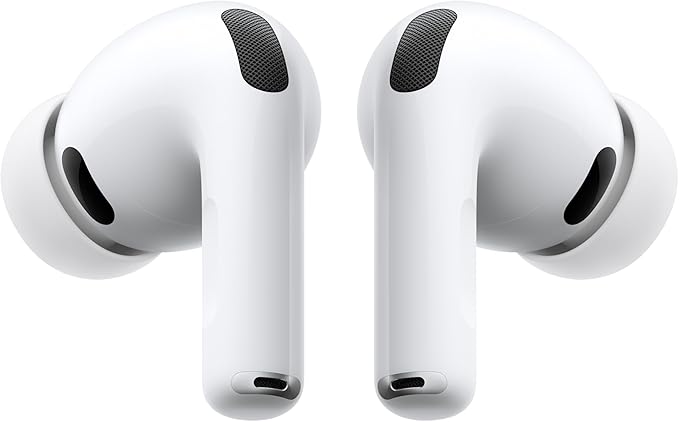
Apple AirPods Pro 3 8.6/10
Why you: you watch, work and take calls on an iPad and want earbuds that pair once, switch from your iPhone on their own, and track your head in films.
Trade-off: the best features need Apple devices, and Android owners get plain Bluetooth playback instead.
H2 chip · Adaptive ANC · Up to 8 h buds, 24 h with case · USB-C case · IP57
Multipoint and automatic switching on a Mac
Two systems let earbuds serve a MacBook Air and a phone together. Bluetooth multipoint, offered by current Sony, Bose, Jabra and EarFun models, holds two live connections and moves with the audio: a phone call pauses the laptop video, then the video resumes. Apple’s automatic switching is account-based rather than connection-based. AirPods stay associated with your Apple account and hop between a Mac, iPhone and iPad as you use them. Standard single-connection earbuds do neither, and the practical workaround is to disconnect them on the phone before connecting on the Mac. Codec support sits behind some sound-quality questions here: a Mac sends AAC or SBC only, and our Bluetooth audio codecs explainer covers what that means for Sony and other hi-res buds.
Troubleshooting: the fixes that work
The earbuds never appear. Restart the sequence, not the laptop. Buds back in the case, lid closed for ten seconds, phone Bluetooth off, then pairing mode again with the Bluetooth settings window open on the Mac. Move away from USB-C hubs and docks if you can: some hubs and external drives crowd the 2.4 GHz band that Bluetooth uses.
They appear but Connect fails. If the Mac shows an old entry for the same earbuds under My Devices, click the small info button beside it and choose Forget This Device. Then pair again from scratch. A stale entry from a failed first attempt blocks most second attempts.
Connected, but sound still comes from the speakers. This is the output-selection issue from Step 4. Choose the earbuds in Control Center, then Sound, or in System Settings, then Sound, then Output. Also check the app itself: a browser tab or a call app may be holding the old output.
Sound in one earbud only. Reseat both buds in the case for ten seconds and take them out together. Check the balance slider in Sound settings is centred. If one bud is still silent, forget and re-pair, which rebuilds the link between left and right.
Audio cuts out or stutters. Bring the MacBook Air closer, close the distance to under ten metres, and remove the case from a pocket on the far side of your body. Turning off Bluetooth on devices you are not using reduces crowding. If stutter started after a macOS update, forgetting and re-pairing once usually settles it.
Nothing above works. Restart the Mac, which resets the Bluetooth service in practice for most users, then pair again. Keep the earbuds’ firmware current through the brand app on your phone, since pairing bugs are usually fixed there. Windows users on the other side of this problem can follow our guide on how to pair earbuds to a PC.
FAQ
Do MacBooks have Bluetooth?
Yes. Every MacBook Air and MacBook Pro Apple has sold for well over a decade includes Bluetooth, and current models support Bluetooth 5.3. It is on by default in macOS. You can check or toggle it in System Settings, then Bluetooth, or from the Bluetooth icon in Control Center in the menu bar.
Why do my earbuds not show up on my MacBook Air?
The usual cause is that the earbuds are not in pairing mode, or they connected automatically to your phone first. Turn Bluetooth off on the phone for a minute, put the buds back in the case, trigger pairing mode again with the case open near the Mac, and watch the Nearby Devices list in System Settings, then Bluetooth. Low battery can also stop earbuds from advertising themselves.
Can I use earbuds as a microphone on a MacBook Air?
Yes. After pairing, open System Settings, then Sound, then Input, and choose your earbuds so apps use their microphone instead of the MacBook Air’s built-in mic. Check the same setting inside Zoom, Teams or FaceTime, because call apps keep their own device choices and can override the system one.
Can my earbuds stay connected to my MacBook Air and my phone?
Only if they support Bluetooth multipoint, like the Sony, Bose, Jabra and EarFun models that offer two live connections. AirPods take a different route and switch automatically between Apple devices on the same account. Single-connection earbuds must be disconnected from one device before the other can take them over.
Why is there only sound in one earbud on my Mac?
Start by reseating both buds in the case for ten seconds, then take them out together. In System Settings, then Sound, then Output, check the balance slider sits in the centre. If one side stays silent, forget the earbuds in Bluetooth settings and pair them again, which forces the pair to rebuild their left and right link.
Do AirPods connect to a MacBook Air automatically?
If the AirPods were set up with an iPhone signed into the same Apple account as the MacBook Air, yes. Put them in your ears, open Control Center, choose Sound, and pick the AirPods. If they are not listed, pair them manually through System Settings, then Bluetooth, using the double-tap method on the case for AirPods Pro 3 and AirPods 4.
The short version
Pairing mode on the earbuds, Bluetooth settings on the Mac, Connect, then confirm the output and microphone in Sound settings. AirPods on the same Apple account skip the middle steps. Most failures trace back to three causes: the buds were never in pairing mode, a phone claimed them first, or macOS kept the laptop speakers as the output. Fix those three and a MacBook Air pairs with any Bluetooth earbuds you own.

I am the founder of Sound Mavericks, where I provide the polite truth about audio equipment. I started this site because consumer electronics reviews are often too technical. Instead of using a silent lab, I test headphones, earbuds, and Bluetooth speakers in the real world – like on a noisy subway or in a busy coffee shop.
To stay independent, I buy my own review units (mostly from the United States) rather than accepting free gifts from brands. Once I finish testing a product, I sell it locally to our community. My goal is to help you understand sound quality, active noise cancellation (ANC), and battery life without the marketing hype.