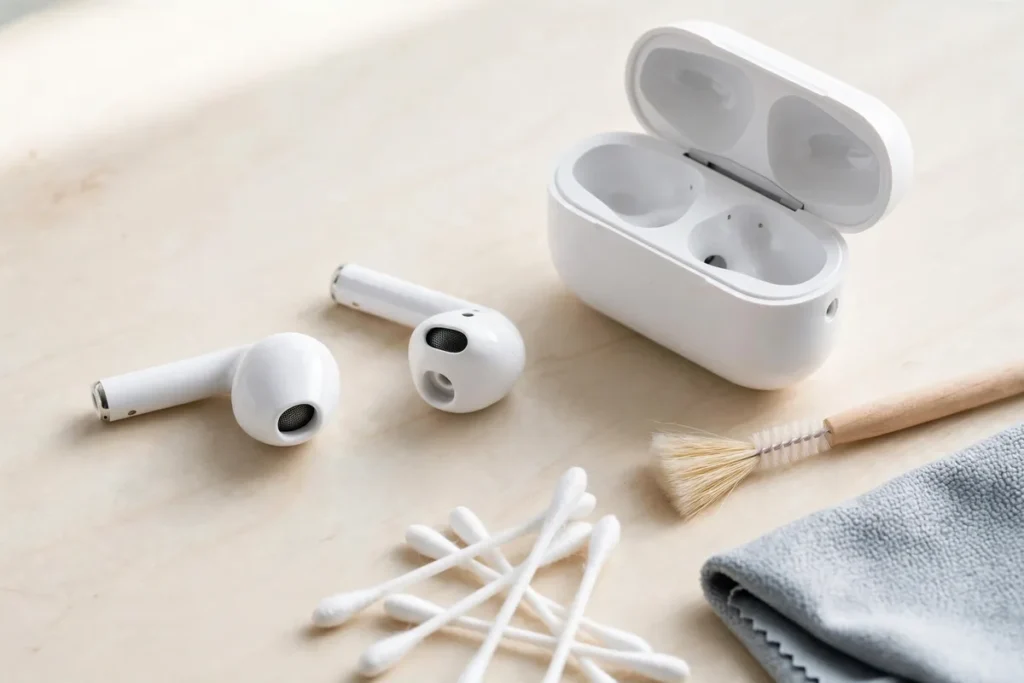

Learning how to connect jabra headphones and earbuds comes down to one skill: getting the device into pairing mode. After that, every phone and computer follows the same pattern. This guide covers the Elite earbuds first, then the Evolve headsets used for work, then pairing on phones and computers, the Sound+ app, connecting a second device with multipoint, and the fixes for the failures people actually hit.
Before you start
Charge the earbuds or headset for a few minutes first. A nearly flat battery is the quiet cause of many failed pairings, because the device drops out of pairing mode to save power. Work close to the phone or computer, within a metre or so, and if the Jabra was paired to another device before, turn that device’s Bluetooth off for the setup. Old connections are greedy: earbuds that find their previous phone will connect to it and vanish from your new device’s list.
Putting Jabra earbuds into pairing mode
For the Elite range, the routine is consistent. Cellular News’ pairing guide describes the same core step across models: press and hold the buttons on the left and right earbuds together for about three seconds, until the right earbud’s LED flashes blue or a pairing prompt plays. Brand-new earbuds usually skip the button hold, because removing them from the case for the first time starts pairing mode automatically.
The steps, in order
One: open the case and take both earbuds out. Two: if no blue light flashes, press and hold both earbud buttons together for about three seconds. Three: release when the LED flashes blue or you hear the pairing announcement. Four: leave the earbuds out of the case while you pair, because returning them ends pairing mode. If a hold does nothing, put the earbuds back, close the lid for ten seconds, and repeat. That reset of the routine fixes most stubborn pairs.
Putting a Jabra headset into pairing mode
Evolve headsets and the Evolve2 Buds follow the work line’s own habits. On an Evolve over-ear or on-ear headset, switch the power control to the Bluetooth position and hold it there until the LED flashes blue and the voice prompt announces pairing. On the Evolve2 Buds, the supplied USB dongle is the fast route: plug it into the computer and the buds connect to it without a Bluetooth menu at all, which is why call centres like them. The dongle also gives the buds a more stable link for softphone calls than a laptop’s built-in Bluetooth usually manages.
Pairing with a phone
iPhone
Put the earbuds into pairing mode first. Then open Settings, tap Bluetooth, confirm it is on, and look under Other Devices. Tap your Jabra model when it appears and wait for the status to change to Connected. If the phone asks for a code, enter 0000, the standard Jabra PIN that Cellular News lists for the range.
Android
Put the earbuds into pairing mode, then open Settings and go to Connected devices or Bluetooth, depending on the brand. Tap Pair new device, select the Jabra from the list, and accept the prompt. Keep the Bluetooth screen open until the status shows Connected, because leaving early can interrupt the handshake on some phones.
Pairing with a computer
Windows
Open Settings, go to Bluetooth and devices, and choose Add device, then Bluetooth. With the Jabra in pairing mode, select it from the list. Afterwards, click the speaker icon in the taskbar and confirm the Jabra is the chosen output, and check the microphone input in your meeting app, because Windows can connect the earbuds for music while leaving the call microphone set to the laptop.
Mac
Open System Settings and go to Bluetooth. Put the Jabra into pairing mode, click Connect when it appears, then open the Control Center sound menu and pick the Jabra as the output. For the Evolve2 Buds, skip all of this and use the dongle: it presents itself as a sound device and the buds pair to it directly, which is the setup our guide to the best Bluetooth earbuds for PC recommends for work calls.
Finishing setup in the Jabra Sound+ app
Pair in Bluetooth settings first, then open Sound+. The app finds the connected device and adds the layer Bluetooth cannot: firmware updates, EQ presets and a custom curve, ANC and HearThrough levels, button remapping on supported models, and battery status for each earbud. Cellular News notes that if Sound+ does not detect a paired device, force-quitting and relaunching the app usually resolves it. One caution from the feed record for the current Elite models: Jabra has wound down its consumer earbud line, so the app and support continue, but no successor models are coming.
Connecting a second device with multipoint
The Elite 10 Gen 2, Elite 8 Active Gen 2 and Evolve2 Buds all support multipoint, and our full Jabra Elite 10 Gen 2 review shows the feature in daily use. To add a second device, enter pairing mode again with the button hold, then select the earbuds on the new device. The first connection is kept. From then on the earbuds follow the action: a call on the phone pauses the laptop video, and ending the call hands the audio back. Only one device plays at a time. Jabra models remember several pairings, up to ten devices on the Elite 8 Active line, so re-pairing old gear rarely means starting over. Our roundup of the best multipoint Bluetooth earbuds compares how the brands handle the switching.
Three Jabra models worth connecting
These are the current picks from our ratings, each with the pairing behaviour described above and multipoint on board.
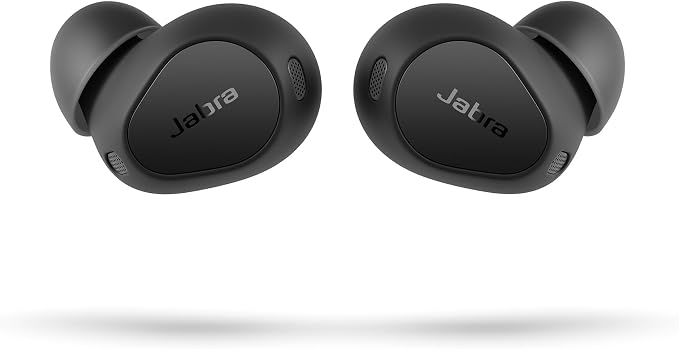
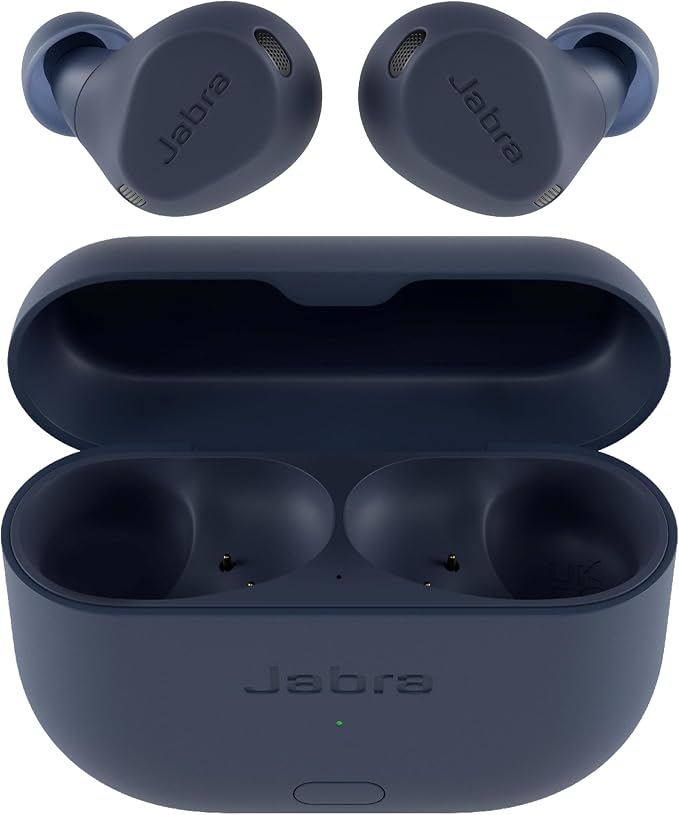
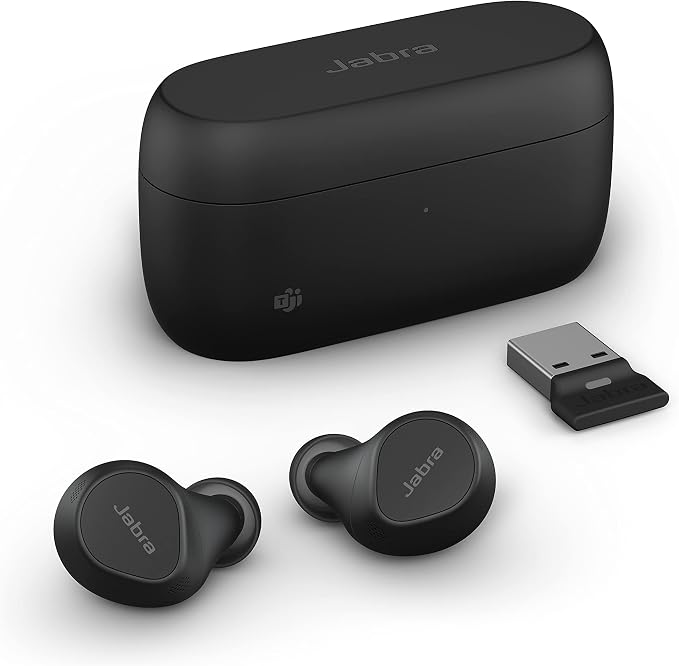
Call quality is the thread through all three, which is why Jabra keeps appearing in our guide to the best earbuds for Zoom calls.
When pairing fails
Work through the order that fixes most cases. Charge first. Then case-reset the routine: buds in, lid closed, ten seconds, out again, hold both buttons. Turn off Bluetooth on every previously paired device in the room. Forget the old Jabra entry in the Bluetooth list and pair fresh. On a computer, try the dongle route if your model has one, or remove the device and re-add it rather than reconnecting a stale entry. If one earbud plays and the other stays silent, return both to the case together and take them out together, because the pair resyncs in the case. Still stuck after that, a full reset from the Sound+ app or the button sequence in your model’s manual clears the pairing list entirely, and you set up once more from clean.
Frequently asked questions
How do I put Jabra earbuds into pairing mode?
Take both earbuds out of the case, then press and hold the button on the left and right earbuds at the same time for about three seconds. Release when the LED flashes blue or you hear the pairing voice prompt. Brand-new earbuds usually enter pairing mode on their own the first time you remove them from the case.
What is the Jabra pairing PIN?
Most devices pair without asking. If a phone or computer does ask for a code, enter 0000, the standard Jabra pairing PIN.
Do I need the Jabra Sound+ app to connect?
No. Pairing happens in your phone or computer’s Bluetooth settings. Sound+ is worth installing afterwards for firmware updates, EQ, ANC controls and battery status, but it does not replace the Bluetooth pairing step and the earbuds work without it.
Can Jabra earbuds connect to two devices at once?
Yes, on models with multipoint, including the Elite 10 Gen 2, Elite 8 Active Gen 2 and Evolve2 Buds in our recommendations. Pair the second device by entering pairing mode again and selecting the earbuds on it. The earbuds then switch to whichever device plays or rings, though only one plays audio at a time.
Why won’t my Jabra earbuds appear in the Bluetooth list?
Usually they are connected to another device nearby, or they never entered pairing mode. Put them back in the case, close the lid for a few seconds, turn off Bluetooth on the old device, then take the earbuds out and hold both buttons until the LED flashes blue. If they still hide, forget any old Jabra entry in the Bluetooth list and pair again from clean.

I am the founder of Sound Mavericks, where I provide the polite truth about audio equipment. I started this site because consumer electronics reviews are often too technical. Instead of using a silent lab, I test headphones, earbuds, and Bluetooth speakers in the real world – like on a noisy subway or in a busy coffee shop.
To stay independent, I buy my own review units (mostly from the United States) rather than accepting free gifts from brands. Once I finish testing a product, I sell it locally to our community. My goal is to help you understand sound quality, active noise cancellation (ANC), and battery life without the marketing hype.