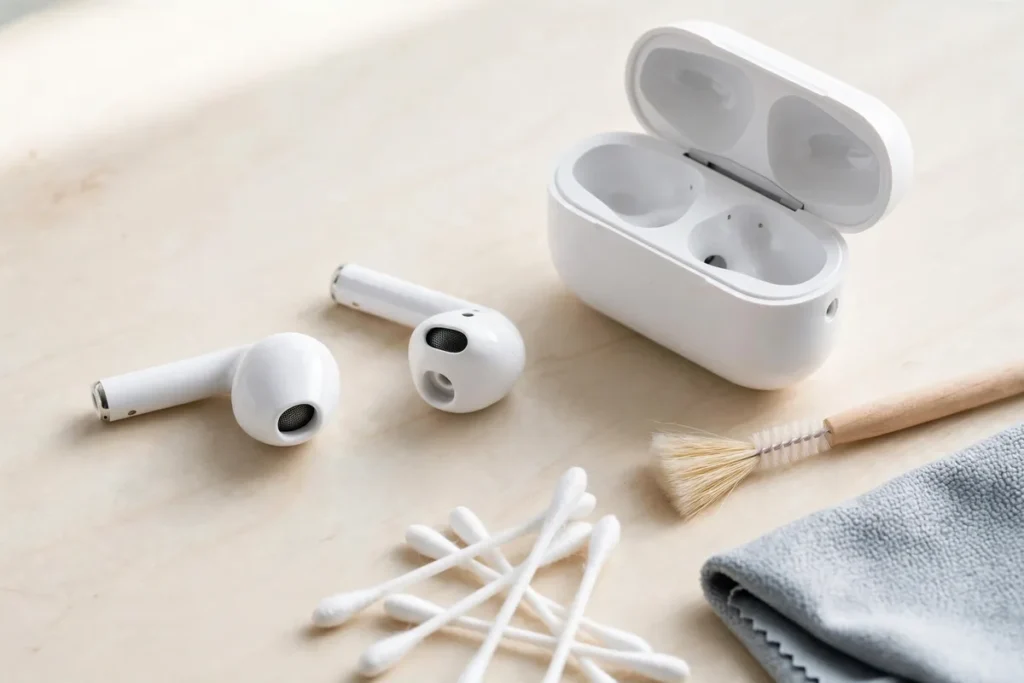

Learning how to update airpods firmware starts with the fact nobody warns you about: there is no update button. Apple delivers AirPods firmware automatically, in the background, when a short list of conditions lines up. Your job is not to press anything. Your job is to set up those conditions, wait, and then check the version number to confirm it worked. This guide gives you the routine exactly as Apple publishes it, the version check on iPhone, iPad and Mac, and the fixes for an update that refuses to land.
How AirPods firmware updates actually work
Apple Support states the mechanism plainly: firmware updates are delivered automatically while your AirPods are charging and in Bluetooth range of your iPhone, iPad or Mac that’s connected to Wi-Fi. The file travels from the internet to your Apple device, then over Bluetooth to the AirPods. Nothing in that chain has a manual trigger, which is why hunting through settings for an update button never finds one.
Why updates seem to arrive at random
The conditions explain the randomness. Your AirPods charge in plenty of places, but they only charge near a paired Apple device on Wi-Fi in specific moments: on a desk at home, beside a Mac at work. An update lands during one of those windows and skips the others. Owners who charge their case in a car or from a wall plug at a gym may go weeks without a qualifying window.
Before you start
Four things need to be true. Your iPhone, iPad or Mac runs the latest version of its system software, with Bluetooth on. That device is connected to Wi-Fi, not mobile data. The AirPods case can reach a power source. And the AirPods themselves are charged enough to sit through the process. How-To Geek’s walkthrough of Apple’s prerequisites lists the same set, including the detail that the case should be plugged in by cable for the wait.
The update routine, step by step
Step 1: Connect and settle the AirPods
Put both AirPods in their charging case and close the lid. Connect the case to power with its cable. Place the case near the paired iPhone, iPad or Mac, close enough for a strong Bluetooth connection, on the same desk is ideal.
Step 2: Confirm the Apple device is ready
On the paired device, check that Bluetooth is on and Wi-Fi is connected. If a system update for the device itself is waiting, install it first, because Apple ties AirPods firmware delivery to current device software.
Step 3: Wait, with the lid closed
Leave everything alone for at least 30 minutes. Keep the lid closed for the whole wait. Opening the case to peek is the classic mistake: it reconnects the AirPods for listening and interrupts the quiet state the update wants. Set a timer and do something else.
Step 4: Reconnect and check the version
After the wait, open the lid near the paired device so the AirPods reconnect. Then check the firmware version using the steps in the next section. If the number has moved to the current release, you are done.
How to check your AirPods firmware version
On iPhone or iPad
With the AirPods connected, open Settings and tap Bluetooth. Tap the info button next to your AirPods in the list. Scroll to the About section to read the firmware version. Apple Support gives this exact path, and the same screen shows the case version on models that report it.
On Mac
Open System Settings from the Apple menu, click Bluetooth, then click the info button next to your AirPods. The firmware version appears in the panel. Compare it with Apple’s published list of current versions for your model, which Apple keeps on its firmware support page. Cult of Mac maintains a running list of current versions by model as a quick cross-check.
If the update will not land
Work the conditions in order. Move the case closer to the device. Switch the device from mobile data to Wi-Fi. Plug the case into power rather than resting it on a wireless pad for this routine, and close the lid again for a full 30 minutes. If the version still has not moved, reset the AirPods from the same settings screen, pair them again, and repeat the routine once. Persistent failure on one model while others update points at the AirPods themselves, and Apple’s own advice for that case is an appointment at an Apple Store or an authorised service provider.
AirPods Max notes
AirPods Max follow the same logic without a case. Connect them over Bluetooth to the paired device on Wi-Fi, plug the charging cable into the earcup and a power source, keep them in range, and wait at least 30 minutes. The version check is identical. Owners comparing models before a replacement can see the full range in our which AirPods to buy guide, and our AirPods Pro 3 review covers the current flagship in depth.
Current AirPods worth the routine
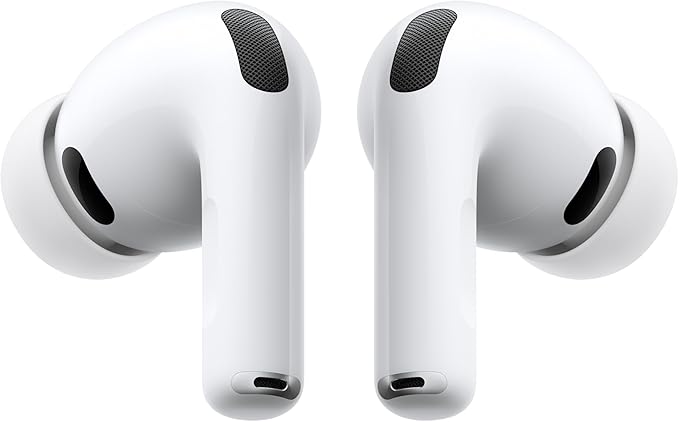
Firmware matters most on the models that keep gaining features. These are the current picks from our database, each scored in full.


Why keeping firmware current matters
Firmware is where AirPods features now arrive. Noise cancelling refinements, call processing changes, battery fixes and support for new device features all ship this way, quietly, with no announcement in the moment. An owner who never creates an update window can miss months of small improvements and then blame the hardware for behaviour the software already fixed. Running the routine in this guide every so often, and after any major system update on your iPhone, iPad or Mac, keeps the AirPods and the device in step. It takes one cable, one half hour of patience, and no button at all.
Keep the case cable in the place where the routine happens, beside the bed or on the desk, rather than in a travel bag. The update window opens when the case, the cable and the paired device are in the same room, and a cable that lives there makes that window a nightly habit instead of a special event.
The one-minute summary
Case closed, case plugged in, paired Apple device nearby on Wi-Fi, thirty minutes of patience, then a version check in Settings, Bluetooth, info, About. That is the whole of how to update airpods firmware. There is no button to find, and once you know that, the process stops being a mystery and becomes a routine you can run any evening.
Frequently asked questions
Is there a button to update AirPods firmware manually?
No. There is no update button, toggle or menu command for AirPods firmware. Updates install automatically when the AirPods are charging in their case, in Bluetooth range of a paired iPhone, iPad or Mac that is connected to Wi-Fi. The routine in this guide sets up those conditions and waits.
How long does an AirPods firmware update take?
Apple’s own steps say to wait at least 30 minutes with the case lid closed and the AirPods in Bluetooth range of the paired device. Many updates land sooner, but checking before the half hour is up is the most common reason people think the process failed.
How do I check my AirPods firmware version?
Connect the AirPods, open Settings on the iPhone or iPad, tap Bluetooth, tap the info button next to your AirPods and scroll to the About section. On a Mac, open System Settings, click Bluetooth and click the info button next to the AirPods name.
Can I update AirPods firmware with an Android phone or a Windows PC?
No. The update is delivered through a paired Apple device. If you have no iPhone, iPad or Mac nearby, Apple suggests an appointment at an Apple Store or an authorised service provider, which can update the firmware for you.
What if the firmware still has not updated?
Run the routine again and check the basics: the Apple device on its latest software with Bluetooth on, the device on Wi-Fi rather than mobile data, the case plugged into power, and the lid closed for the full wait. If it still fails, reset the AirPods and repeat the routine.

I am the founder of Sound Mavericks, where I provide the polite truth about audio equipment. I started this site because consumer electronics reviews are often too technical. Instead of using a silent lab, I test headphones, earbuds, and Bluetooth speakers in the real world – like on a noisy subway or in a busy coffee shop.
To stay independent, I buy my own review units (mostly from the United States) rather than accepting free gifts from brands. Once I finish testing a product, I sell it locally to our community. My goal is to help you understand sound quality, active noise cancellation (ANC), and battery life without the marketing hype.