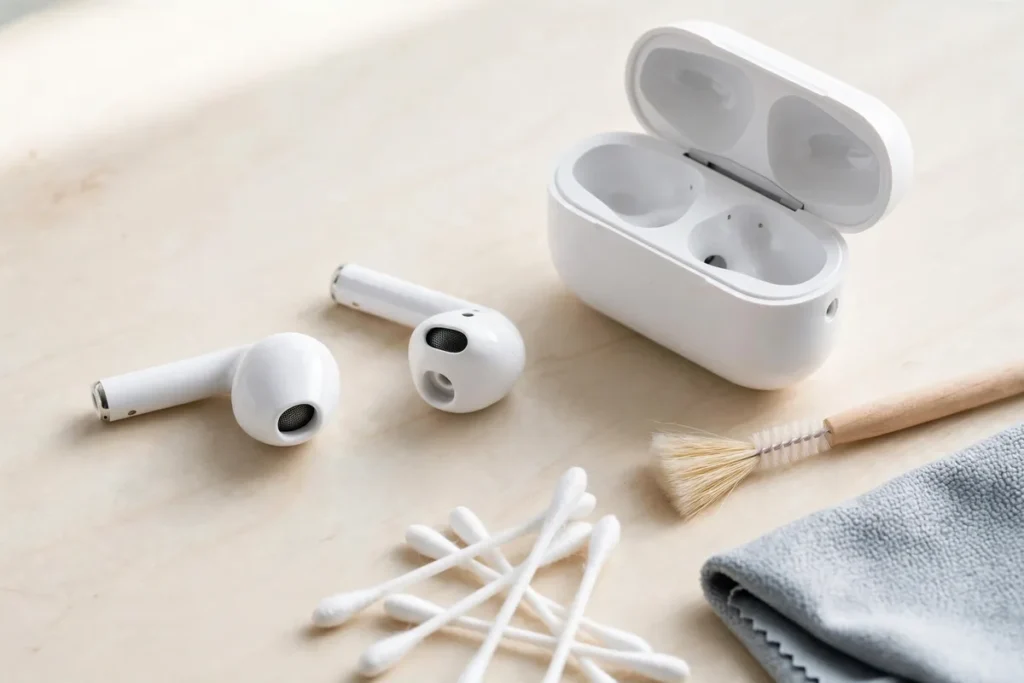

The whole job of learning how to pair sony headphones comes down to one move: putting the headphones into pairing mode properly. Everything after that is just picking their name from a Bluetooth list. Sony’s pairing mode differs slightly between over-ears and earbuds, and a pair that has connected to something before behaves differently from a new pair, which is where most people get stuck. This guide covers phones, laptops and TVs in order, then the reset that fixes a pair that refuses to appear.
Pairing mode: over-ears and earbuds differ
Over-ear models (WH series). Turn the headphones off first. Then press and hold the power button for about seven seconds, until the indicator flashes blue repeatedly and you hear the Bluetooth pairing voice prompt. A short press only powers the headset on and reconnects it to the last device, which is the mistake behind most failed attempts. Sony’s own WH-1000XM6 help guide notes the exception: a brand new headset enters pairing mode automatically the first time you turn it on, so the long hold is only needed for the second device onwards.
Earbuds (WF series). A new pair enters pairing mode when you open the case and take the buds out. For a later pairing, put both buds in the case, leave the lid open, and hold the pairing button on the back of the case for about five seconds until the case indicator flashes blue. On models without a case button, hold the touch sensor on both buds at the same time for several seconds until you hear the pairing prompt. The WF-1000XM5 follows the case button method.
Pair with an Android phone or an iPhone
Step 1: put the headphones in pairing mode using the method above. Step 2: on Android, open Settings, then Connected devices or Connections, then Bluetooth, and look under available devices. On an iPhone, open Settings, then Bluetooth, and look under Other Devices. Step 3: tap the model name, such as WH-1000XM6 or WF-1000XM5, and accept any pairing prompt. If a passkey is requested, enter 0000. Step 4: install Sony Sound Connect and let it register the headphones. The app handles firmware updates, EQ and noise cancelling settings, and it makes later troubleshooting far easier. Android owners may also see a Fast Pair popup with a new pair, which shortens step 2 to a single tap. Our guide to pairing Bluetooth earbuds to an iPhone covers the iPhone side in more depth.
Pair with a Windows laptop or a Mac
On Windows, open Settings, then Bluetooth and devices, turn Bluetooth on, choose Add device, then Bluetooth, and select the Sony model when it appears. Then check Settings, System, Sound, and set the headphones as the output, because Windows sometimes pairs a headset and keeps playing through the speakers. On a Mac, open System Settings, then Bluetooth, and click Connect beside the model name; then confirm the output under Sound settings. For calls on either system, check the microphone input too: headsets can register a separate hands-free profile for calls, and picking the wrong entry is why people sound distant in meetings. If the name appears twice, connect, test a call, and note which entry sounds clear.
Pair with a TV
Most smart TVs pair the same way: open the TV’s Settings, find Bluetooth or Accessories, choose Add or Pair, put the Sony headphones in pairing mode, and select them. On Sony TVs the path runs through Settings, Remotes and Accessories, Bluetooth. Two TV specific notes. First, the TV will usually drop its speakers while headphones are connected, so check how to switch back before a family member needs the sound. Second, lip sync can drift on some TVs; if voices lag, look for an audio delay or AV sync setting in the TV’s sound menu and nudge it until speech matches mouths. A wired connection to the TV or remote remains the fallback when a set has no Bluetooth audio at all.
Connect to two devices with multipoint
Recent Sony flagships and the WH-CH520 support multipoint, staying connected to two devices at once, typically a phone and a laptop. Pair with the first device normally, then put the headphones back into pairing mode and pair with the second; the first connection is kept. Sound Connect shows both connections and lets you manage them. Playback follows the device that starts playing, and a phone call takes priority over laptop audio. Our explainer on what Bluetooth multipoint is covers the behaviour and its limits. Note that high quality LDAC playback and multipoint can restrict each other on some models, so if sound quality dips after adding a second device, that trade is the likely cause.
Three Sony pairs this guide was written around
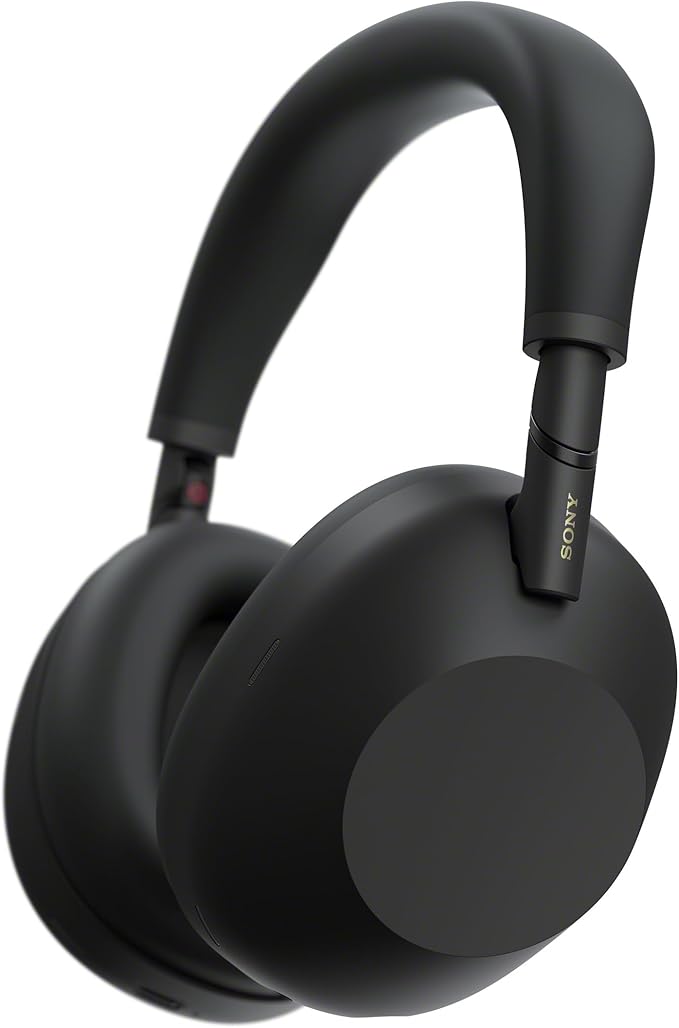
The steps above were checked against these current models, which between them cover the over-ear long hold, the earbud case button and the budget on-ear variant of the same routine. Our WH-1000XM6 review and WH-CH520 review cover the listening side once you are connected.


When pairing fails: forget, then reset
Work through three fixes in order. Fix 1: forget and re-pair. On the phone or computer, open Bluetooth, forget or remove the Sony entry, then pair again from pairing mode. This clears a corrupted pairing record, the most common cause. Fix 2: clear the way. Turn off Bluetooth on other devices the headphones know, or move away from them, because a pair in range of its old laptop may reconnect to it instantly and never broadcast. Charge the headphones too; a nearly flat battery can cut pairing short. Fix 3: initialise. As a last resort, reset the headphones to factory state, which deletes every pairing. On WH over-ears, Sony’s method is to turn the headset off and hold the power and NC/Ambient buttons together until the indicator flashes blue. On WF earbuds, use the initialise option with the buds in their case, following the model’s help guide, or trigger it from Sound Connect where offered. After a reset, the pair behaves like a new one and enters pairing mode on first power on.
Frequently asked questions
Why do my Sony headphones connect to my old device instead of pairing?
Because a short power press reconnects to the last paired device rather than entering pairing mode. Turn the headphones fully off, then hold the power button for about seven seconds until the indicator flashes blue and you hear the pairing prompt. Also turn off Bluetooth on the old device, or move out of its range, so it cannot reclaim the connection.
What is the pairing passkey for Sony headphones?
If a device asks for a passkey, enter 0000. Most current phones and computers never ask, because the pairing prompt is a simple confirm tap. A passkey request usually appears with older laptops, TVs or car systems. If 0000 is rejected, forget the device entry on both sides and pair again from pairing mode.
How do I pair Sony earbuds to a second device?
Put both buds in the case, leave the lid open, and hold the pairing button on the back of the case for about five seconds until the indicator flashes blue. Then select the buds on the new device. The first pairing is kept on models with multipoint, so the buds can stay connected to your phone while you add a laptop.
Do I need the Sony Sound Connect app to pair?
No. Pairing happens in the device’s own Bluetooth settings, and the headphones work without the app. The app is still worth installing afterwards: it registers the product, delivers firmware updates, and holds the EQ, noise cancelling and multipoint settings. Several fixes, including guided resets on some models, also start from the app.
My Sony headphones pair but there is no sound. What now?
Check the output device, not the pairing. On Windows, set the headphones as the output under Settings, System, Sound. On a Mac, pick them under Sound output. On a phone, pull down the audio output switcher during playback and select the headphones. If sound is thin and distant, the hands-free call profile is selected; switch to the stereo entry for music.

I am the founder of Sound Mavericks, where I provide the polite truth about audio equipment. I started this site because consumer electronics reviews are often too technical. Instead of using a silent lab, I test headphones, earbuds, and Bluetooth speakers in the real world – like on a noisy subway or in a busy coffee shop.
To stay independent, I buy my own review units (mostly from the United States) rather than accepting free gifts from brands. Once I finish testing a product, I sell it locally to our community. My goal is to help you understand sound quality, active noise cancellation (ANC), and battery life without the marketing hype.