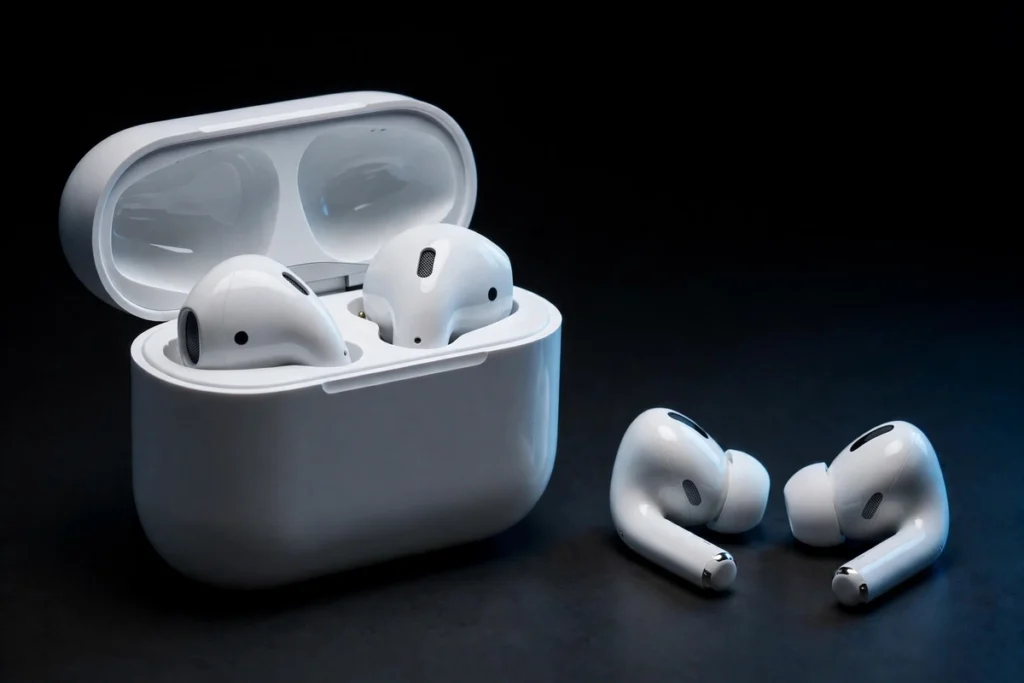

AirPods pair to an iPhone in about ten seconds: open the case next to your awake iPhone and tap Connect on the pop-up. Third-party earbuds take one extra step, putting them into pairing mode first, then choosing them in Settings, Bluetooth. This guide covers both, plus pairing to iPad and Mac on the same Apple ID, renaming, ear detection settings and the fixes for the problems people actually hit. It is Apple-specific on purpose. For Android and generic pairing depth, our general how to pair Bluetooth earbuds guide covers the rest.
The steps below follow Apple published support instructions and the pairing patterns each major earbud brand documents for its current models. Menu names are from current iOS, iPadOS and macOS versions.
Pair AirPods to iPhone: the pop-up flow
- Update the iPhone if it is far behind, then wake it and stay on the Home Screen.
- Turn Bluetooth on in Settings, Bluetooth.
- Put both AirPods in the case, open the lid and hold the case next to the iPhone.
- Wait for the setup animation. Tap Connect.
- Follow the short screens for features such as Siri, ANC or personalised spatial audio, then tap Done.
That is the whole process. The AirPods bind to your Apple ID, not just to that phone, which is why the later sections on iPad and Mac are short. Battery levels for both buds and the case appear in the Batteries widget and in Settings once paired.
Put AirPods into pairing mode manually
You need pairing mode when the pop-up never appears, when the AirPods belonged to someone else, or when you are pairing to a device outside your account. With both buds in the case and the lid open, use the case control: on AirPods Pro 1 and 2, AirPods 3 and earlier models, press and hold the round setup button on the back of the case until the status light flashes white. On AirPods 4 and AirPods Pro 3 the button is hidden in the front of the case, so double-tap the front centre of the case while the light is on. For AirPods Max, press and hold the noise control button until the light flashes white. Then find the AirPods in the Bluetooth list of the device you are pairing and select them.
Pair third-party earbuds to iPhone
Every other brand works the same way once the buds are discoverable. Open Settings, Bluetooth on the iPhone, put the buds into pairing mode using the pattern for your brand, then tap their name under Other Devices.
- Sony (WF-1000X series, LinkBuds): with the buds in your ears or the case open, hold the touch sensors on both buds, or press the case pairing button on newer cases, until the voice guide or flashing light confirms pairing mode.
- Bose (QuietComfort Earbuds): open the case and press and hold the button on the back of the case until the earbud status lights blink blue.
- Samsung Galaxy Buds: place both buds in the case, close it for a few seconds, open it, then touch and hold both touchpads until the beep signals pairing mode. New buds often enter pairing mode the first time the case opens.
- Jabra (Elite series): hold the button on both buds for about three seconds until the LED flashes blue. On newer Elite models the case button does the same job.
- Soundcore, EarFun and most budget brands: open the case with the buds inside. Most enter pairing mode automatically on first use, or after holding the case button for three seconds.
Two habits prevent most failures. Charge the buds first, because many models refuse pairing mode on a nearly flat battery. And if the buds are already paired to another phone nearby, turn that phone Bluetooth off for a minute so the buds stop reconnecting to it.
Pair to iPad and Mac with the same Apple ID
If your iPad and Mac are signed in to the same Apple ID as the iPhone, AirPods need no second pairing. They already appear in the Bluetooth menu and the sound output menu on both. On iPad, open Control Centre, long-press the audio card and choose the AirPods. On Mac, click the sound or Bluetooth icon in the menu bar and select them, or find them in System Settings, Bluetooth.
Automatic switching follows the same account logic. Start a video on the iPad and the AirPods move to it, take a call on the iPhone and they move back. If switching annoys you, connect the AirPods to the iPhone, open Settings, Bluetooth, tap the i icon and set Connect to This iPhone to When Last Connected instead of Automatically. Third-party earbuds do not get account sync or automatic switching. Pair them to each Apple device separately, and use multipoint models if you want two connections live at once.
Rename your earbuds and set ear detection
Renaming helps when a household owns three identical white cases. Connect the earbuds, open Settings, Bluetooth, tap the i icon beside the name, tap Name and type your own. AirPods also show a banner at the top of Settings when in use, which leads to the same screen plus controls for noise modes, press-and-hold actions and microphone side.
Ear detection is the setting that pauses audio when you remove a bud and resumes when you put it back. For AirPods it lives in that same Bluetooth detail screen as Automatic Ear Detection. Turn it off if your buds pause when you adjust the fit, or if you often listen with one bud while the other charges. Most third-party buds put the equivalent setting, usually called wear detection or in-ear detection, inside the brand app rather than in iOS.
Troubleshooting: the four problems that cover almost everything
One bud is silent
Seat both buds in the case and charge for 15 minutes. A bud that did not charge because its contacts were dirty is the most common cause. Wipe the stem contacts and the case pins with a dry cloth, check the balance slider in Settings, Accessibility, Audio/Visual sits in the centre, then take both buds out together. Still silent: forget the earbuds in Bluetooth settings and pair again.
The earbuds do not show up in the list
They are almost certainly connected to something else or not in pairing mode. Close nearby laptops, turn off Bluetooth on other phones in the room, put the buds back in the case for 30 seconds and re-enter pairing mode, watching for the flashing light rather than assuming it worked. Move away from crowded radio environments such as airport seating rows if you can.
Sound keeps cutting out
Keep the phone on the same side of your body as the primary bud connection, usually the right, and out from under a laptop or metal desk. Turn off other Bluetooth accessories one at a time if the problem started recently. A forget-and-repair cycle clears most persistent dropouts.
Reset steps when nothing else works
For AirPods: forget them in Settings, Bluetooth on the iPhone, put both buds in the case, close the lid for 30 seconds, open it and hold the setup button, or double-tap the front of the case on AirPods 4 and Pro 3, until the light flashes amber, then white. Pair again from scratch. For third-party buds, the reset is usually holding the case button for 10 or more seconds, or a reset option inside the brand app. Jabra and Sony both document a full factory reset in their apps. After a reset, every device needs a fresh pairing, which is exactly why it fixes stubborn cases.
The set-and-forget option if you are buying new
If the troubleshooting above is for a dying pair and you are replacing them anyway, the AirPods 4 with ANC is the low-effort buy for iPhone owners who dislike ear tips. Pairing is the ten-second pop-up, the account sync covers your iPad and Mac, and the case charges wirelessly and beeps from Find My when it slides between sofa cushions. Readers comparing the wider field should start with our roundup of the best Bluetooth earbuds instead.

Apple AirPods 4 with ANC 8.0/10
Why you: you pair once with the pop-up and the same Apple ID carries them to your iPad and Mac, with noise cancelling for the commute in an open fit.
Trade-off: the open design lets in more noise than sealed buds, and battery life is 4 hours with ANC on, so long flights need case top-ups.
H2 chip · Open-fit ANC · Up to 4 h ANC (20 h with case) · IP54 · Find My speaker case
FAQ
Why is there no pop-up when I open my AirPods case?
The pop-up needs an awake iPhone nearby, Bluetooth on and the AirPods not already paired to another Apple account. Close the case for 15 seconds, open it next to the awake phone and wait. If it still does not appear, pair manually in Settings, Bluetooth, after putting the case into pairing mode.
How do I pair earbuds that are not AirPods to an iPhone?
Put the buds into pairing mode using the pattern in this guide, then open Settings, Bluetooth on the iPhone and tap the earbud name under Other Devices. The iPhone treats every Bluetooth earbud the same way once it is discoverable. Controls and settings after pairing depend on the brand app.
Do I need to pair AirPods separately to my iPad and Mac?
No, not if all three use the same Apple ID. Pair once with the iPhone and the AirPods appear on the iPad and Mac automatically. You only need a manual pairing if a device uses a different account, which is common with work Macs.
How do I rename my earbuds on iPhone?
Connect the earbuds, open Settings, Bluetooth, tap the i icon next to their name, tap Name and type the new one. For AirPods you can also open Settings and tap the AirPods banner at the top. The new name follows AirPods across your Apple devices.
Why is only one earbud playing sound?
Start with the case. Seat both buds, charge for 15 minutes, then take both out together. Check Settings, Accessibility, Audio/Visual, Balance is centred. Clean the mesh and speaker grille, forget the earbuds in Bluetooth settings and pair again. A bud that stays silent after a full reset usually has a hardware fault.
How do I reset AirPods that will not connect?
Put both buds in the case, close the lid for 30 seconds, then open it and hold the setup button, or double-tap the front of the case on AirPods 4 and Pro 3, until the light flashes amber and then white. On the iPhone, forget the AirPods in Bluetooth settings first, then pair again from the pop-up or the device list.
The short version
AirPods: open the case by an awake iPhone and tap Connect. Everything else: pairing mode first, then Settings, Bluetooth. Same Apple ID means iPad and Mac need no extra work. When a pair misbehaves, charge it, forget it, reset it, pair it again, in that order. That sequence resolves the large majority of pairing problems without a support call.

I am the founder of Sound Mavericks, where I provide the polite truth about audio equipment. I started this site because consumer electronics reviews are often too technical. Instead of using a silent lab, I test headphones, earbuds, and Bluetooth speakers in the real world – like on a noisy subway or in a busy coffee shop.
To stay independent, I buy my own review units (mostly from the United States) rather than accepting free gifts from brands. Once I finish testing a product, I sell it locally to our community. My goal is to help you understand sound quality, active noise cancellation (ANC), and battery life without the marketing hype.