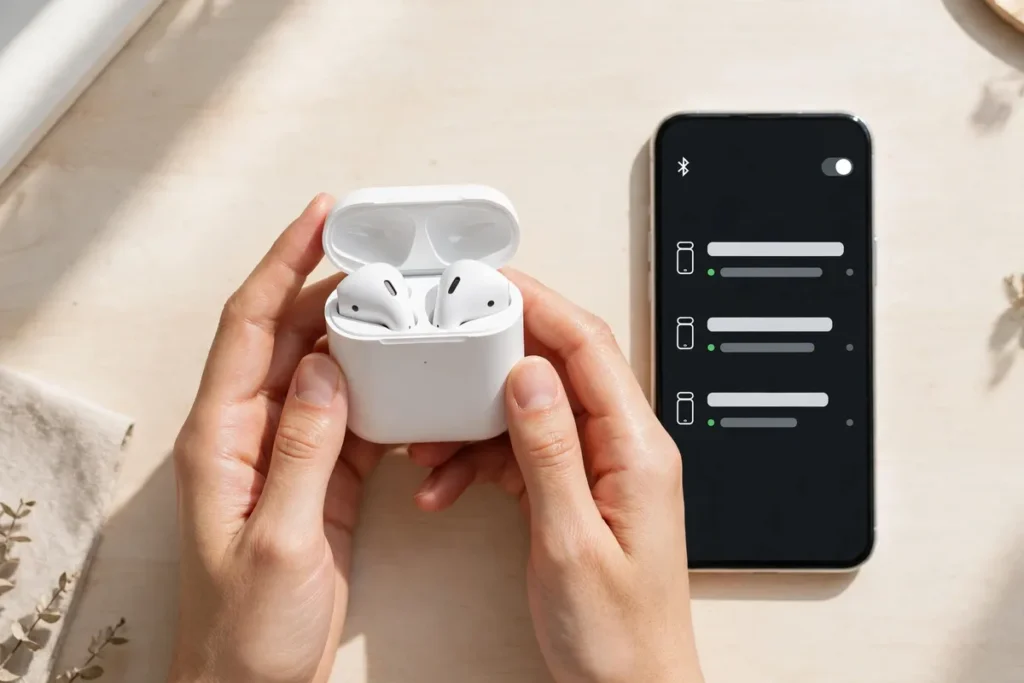
To connect OnePlus earbuds to a new device, put both buds in the case, open the lid and hold the button on the case for about two seconds until the light blinks white. The buds are now in pairing mode and will show up in the Bluetooth list of your phone, laptop or tablet. On a OnePlus phone it is even simpler: open the case near the phone and tap the pop-up card. This guide covers each route in order, plus the HeyMelody app, laptop pairing, resets and the fixes for buds that refuse to appear.
Put OnePlus Buds in pairing mode
Every current OnePlus model, Buds 4, Buds Pro 3, Buds 3 and the Nord Buds range, uses the same pairing routine:
- Place both earbuds in the charging case and leave the lid open.
- Press and hold the setup button on the case for about two seconds.
- When the case light blinks white, the buds are discoverable. You have a few minutes before pairing mode times out.
- On the device you want to connect, open Bluetooth settings and select the buds by name, for example “OnePlus Buds 4”.
Two exceptions worth knowing. The original OnePlus Buds and Buds Z have no case button; they enter pairing mode when you open the case, and a long press on both earbuds’ touch areas restarts the process. And if your buds were paired before, they will try to reconnect to the last device first. Turn Bluetooth off on that old device, or forget the buds there, if they keep grabbing the wrong connection.
Connect to a OnePlus phone
OnePlus phones handle their own buds natively, so skip the app store entirely:
- Open the case near your phone with its screen on. A pairing card pops up; tap Connect.
- If no card appears, open Settings, then Bluetooth, and pick the buds from the available devices list after putting them in pairing mode.
- After pairing, tap the buds’ name in the Bluetooth list to open their full settings page.
That settings page is where OnePlus owners manage everything: noise cancelling modes, the Sound Master EQ, touch controls, earbud fit test and firmware updates. Features such as Golden Sound on the Buds 4 live there too. Nothing extra needs installing, and the settings stay available even when the buds are connected to a second device.
Connect to another Android phone or an iPhone
On any other phone, pair the buds from the Bluetooth settings the standard way, using pairing mode above. Then install the HeyMelody app, published by OnePlus, from the Play Store or App Store. HeyMelody is the control panel for non-OnePlus phones:
- Open HeyMelody and grant the Bluetooth and location permissions it asks for; it needs them to find the buds.
- Keep the buds near the phone with the case open and tap to add your model when it appears.
- From the device screen you can adjust the EQ, reassign touch controls, run a fit test and install firmware updates.
Without the app the buds still play music and take calls normally. What you lose is the EQ, the control customisation and the firmware updates, so the app is worth the two minutes it takes. iPhone owners should note one limit: OnePlus Buds play over AAC on iOS, so the LHDC hi-res stream stays an Android and OnePlus feature.
Connect OnePlus Buds to a laptop
Laptops pair over plain Bluetooth, and there is no HeyMelody app for Windows or macOS, so plan to do EQ and firmware work on your phone and treat the laptop as a listening device.
Windows: put the buds in pairing mode, then open Settings, Bluetooth and devices, Add device, Bluetooth, and click the buds when they appear. Mac: put the buds in pairing mode, open System Settings, Bluetooth, and click Connect next to the buds in the nearby devices list.
If you want the buds on your phone and laptop at the same time, the Buds 4 and Buds Pro 3 support dual-device connection: pair with both devices once, and they will switch to whichever plays audio or receives a call. The Buds 3 and Nord Buds models hold one connection at a time, so disconnect from the phone before pairing the laptop, or the laptop will not see them. For deeper Windows troubleshooting, our guide on how to pair earbuds to a PC covers driver and audio-output issues, and our explainer on Bluetooth multipoint explains how dual connections behave.
If you are setting up a first pair alongside these steps, the current model to know is the Buds 4:

OnePlus Buds 4 8.6/10
Why you: you are buying OnePlus buds to go with these steps and want the model with dual-device connection for phone and laptop use.
Trade-off: no wireless charging, and the LHDC hi-res codec only works with phones that support it.
LHDC 5.0 · ANC up to 55 dB · 45 h total battery · Bluetooth 5.4 · IP55
OnePlus Buds not connecting? Work through these fixes
- Charge the case first. A nearly flat case will not enter pairing mode reliably. Ten minutes on USB-C is enough to test.
- Make the old device let go. Buds reconnect to their last device automatically. Forget them in that device’s Bluetooth settings, or switch its Bluetooth off, then try pairing mode again.
- Check you are really in pairing mode. The case light must blink white. If it glows steady, hold the button again for a full two seconds with the lid open and both buds seated.
- Forget and re-pair. Remove the buds from your phone’s Bluetooth list, restart the phone, and pair from scratch. This clears most corrupted pairings after a firmware update.
- Fix one silent bud by reseating it. Put both buds back in the case, close the lid for ten seconds, then open it. If one bud still stays silent, clean the charging contacts on the bud and in the case with a dry cloth.
How to reset OnePlus Buds
A factory reset clears every pairing and returns the buds to first-run state. Use it when the fixes above fail or when you are passing the buds to someone else:
- Put both buds in the case and open the lid.
- Press and hold the case button for about ten seconds, until the light flashes red.
- Close the lid, wait a few seconds, and the buds are reset.
- Forget the old entry in your phone’s Bluetooth settings, then pair again using pairing mode.
On the original Buds and Buds Z, which have no case button, reset from the HeyMelody app device settings instead, or from the earbud settings page on a OnePlus phone.
FAQ
How do I put my OnePlus Buds in pairing mode?
Put both buds in the case, open the lid and hold the case button for about two seconds until the light blinks white. The buds then appear in the Bluetooth list of any nearby phone, laptop or tablet. On a OnePlus phone, opening the case near the phone brings up a pairing card without the button hold.
Is there a HeyMelody app for PC?
No. HeyMelody exists for Android and iOS only. On a Windows PC or Mac you pair OnePlus Buds through the standard Bluetooth settings, and all listening features work. EQ changes, touch-control settings and firmware updates need the phone app, or the built-in earbud settings on a OnePlus phone.
Do OnePlus Buds work with iPhone?
Yes, they pair over standard Bluetooth and play over AAC, and HeyMelody on iOS covers EQ, controls and firmware updates. The LHDC hi-res codec and the pop-up pairing card do not carry over, since both need OnePlus or Android hardware on the phone side.
Can OnePlus Buds connect to two devices at the same time?
The Buds 4 and Buds Pro 3 can, through dual-device connection: pair them with a phone and a laptop and they switch to whichever device plays audio or takes a call. The Buds 3 and Nord Buds models connect to one device at a time, so disconnect from the first device before pairing the second.
How do I update my OnePlus Buds firmware?
On a OnePlus phone, open the earbuds’ settings page from the Bluetooth list and check for updates there. On any other phone, open HeyMelody, select your buds and use the firmware update option on the device screen. Keep the buds in the open case near the phone until the update finishes.
The short version
Pairing mode is a two-second hold of the case button with the lid open. OnePlus phones add a pop-up and built-in settings; every other phone uses HeyMelody; laptops pair through plain Bluetooth with no app involved. If a connection misbehaves, make the old device forget the buds before you blame the buds, and keep the ten-second reset as the last resort. For pairing help with earbuds from other brands, our general guide on how to pair Bluetooth earbuds covers the universal steps.

I am the founder of Sound Mavericks, where I provide the polite truth about audio equipment. I started this site because consumer electronics reviews are often too technical. Instead of using a silent lab, I test headphones, earbuds, and Bluetooth speakers in the real world – like on a noisy subway or in a busy coffee shop.
To stay independent, I buy my own review units (mostly from the United States) rather than accepting free gifts from brands. Once I finish testing a product, I sell it locally to our community. My goal is to help you understand sound quality, active noise cancellation (ANC), and battery life without the marketing hype.