Quick Answer: How to Adjust Earbud Volume
To learn how to adjust earbud volume, start with your brand’s gesture: swipe up or down on the stem on AirPods Pro 2 and Galaxy Buds 3 Pro, tap four times on Sony WF-1000XM5, or tap and hold on most JBL buds. If nothing happens, the gesture is probably switched off — open your brand’s app and turn volume control on. Phone buttons and your voice assistant always work as backup. These three models have the clearest on-bud volume controls SoundMavericks recommends:
There is no single volume button on wireless earbuds, and that is why this trips people up. Every brand hides volume behind a different gesture — a swipe here, four taps there, a press-and-hold somewhere else — and on many models the gesture does nothing until you enable it in the companion app. This guide gives you the exact gesture for Apple, Samsung, Sony, JBL and Soundcore, the app setting that enables each one, phone-side options for iOS and Android, and fixes for when gestures stop responding.
How to Adjust Volume on Earbuds Without Phone
Almost every pair gives you three phone-free ways to change volume — at least one will work on yours:
1. The on-bud gesture. A swipe, tap sequence or press-and-hold on the earbud itself — the fastest method, though the gesture differs by brand and is sometimes disabled by default. The per-brand sections below cover yours.
2. Your voice assistant. Say “Siri, turn the volume up” or “Hey Google, set volume to 60 percent.” Voice control works even on earbuds with no volume gesture at all, including older AirPods.
3. A smartwatch or the case. A paired Apple Watch, Galaxy Watch or Wear OS watch can change playback volume from your wrist, and a few models — such as the JBL Live Beam 3, with its touchscreen case — adjust volume from the case itself.
If none of the three works, the problem is almost never the earbuds themselves — it is a setting: a disabled gesture, a volume limit, or two volume systems fighting each other. The troubleshooting section covers each one.
Volume Gestures at a Glance: Every Major Brand
| Earbuds | Volume Up | Volume Down | Setup Needed? | Price Check |
|---|---|---|---|---|
| Apple AirPods Pro 2 | Swipe up on either stem | Swipe down on either stem | On by default; disable in Settings | Check Price |
| Samsung Galaxy Buds 3 Pro | Swipe up on the back edge of either stem | Swipe down on the back edge of either stem | On by default | Check Price |
| Sony WF-1000XM5 | Tap the right earbud four times | Tap the left earbud four times | On by default; reassignable in the Sony app | Check Price |
| JBL Tune Buds | Tap and hold the right earbud | Tap and hold the left earbud | Assign in the JBL Headphones app if not active | Check Price |
| Soundcore Liberty 4 NC | Assign a tap gesture in the Soundcore app (right) | Assign a tap gesture in the Soundcore app (left) | Yes — assign it in the app’s Controls section | Check Price |
Apple AirPods: Swipe the Stem (Pro 2) or Ask Siri (Everyone Else)
AirPods Pro 2: swipe up or down on the stem
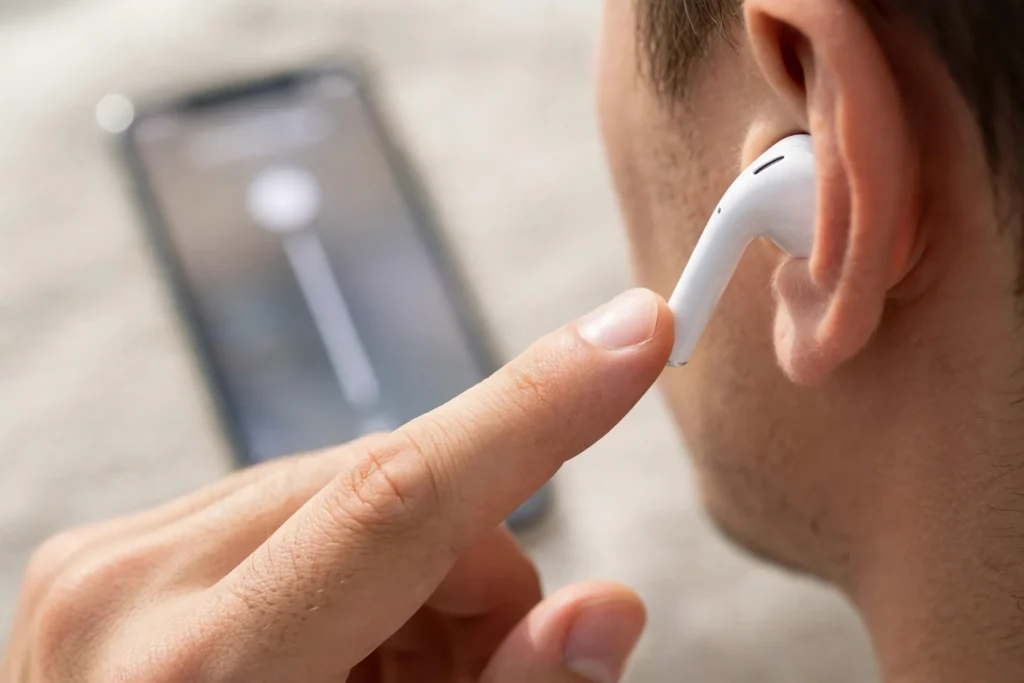
Apple added true on-bud volume control with the AirPods Pro 2, and it still catches owners out because there is no button to find. Rest a thumb lightly on the back of either stem for stability, then slide your index finger up or down the small indent on the front of the stem — up for louder, down for quieter. Each swipe moves one step and plays a soft click so you know it registered. Short, light swipes beat long drags; grab the whole stem and you will trigger the squeeze control instead.
The squeeze (force sensor) controls handle everything else: squeeze once to play or pause, twice to skip forward, three times to go back, and squeeze and hold to switch noise control modes. Volume is the only swipe gesture, so it is hard to trigger by accident once your finger learns the indent.
Older AirPods and AirPods Pro 1: no on-bud volume
AirPods 1, 2 and 3 and the original AirPods Pro have no volume gesture at all — no update adds one, because the sensor for it is not there. Your options are the iPhone’s volume buttons, the Control Center slider, an Apple Watch, or Siri: say “Siri, turn it up,” or be precise with “Siri, set the volume to 50 percent” — a percentage is more reliable than a plain “turn it up,” which moves in fixed steps.
Turning AirPods volume swipe on or off
If swiping does nothing, the gesture has likely been switched off. With the AirPods connected, open Settings on your iPhone, tap your AirPods name, tap Accessibility, and turn on the Volume Swipe toggle under Volume Control. The same screen lets you slow the press speed and press-and-hold duration, which helps if squeezes misfire. Paired to Android, the swipe still works but cannot be customised. For how Apple’s controls compare with Samsung’s, see our Galaxy Buds 3 Pro vs AirPods Pro 2 comparison.
Samsung Galaxy Buds: Swipe the Blade, or Set the Touchpad
Galaxy Buds 3 and Buds 3 Pro: pinch and swipe
Samsung rebuilt its controls around the stem (the blade) for the Buds 3 series. Pinch the bottom of either stem once to play or pause, pinch and hold to switch noise controls — and for volume, swipe up or down along the back edge of either stem: up for louder, down for quieter. The swipe zone is the rear edge, not the flat front face. If swipes keep pausing the music, your finger is drifting onto the pinch area — aim higher, on the edge itself.
Galaxy Buds 2 Pro, Buds 2 and Buds Pro: assign touch and hold
The older round Galaxy Buds have no stem to swipe, so volume lives on the touchpad — but only after you assign it. Open the Galaxy Wearable app, tap Touch controls, and set the touch-and-hold action: choosing Volume down for one side automatically pairs Volume up on the other. After that, touch and hold the right bud to raise volume and the left to lower it. The trade-off: that slot does one job only, so assigning volume means giving up whatever it did before, such as launching Spotify or the voice assistant.
There is a workaround on several of these models. In the Wearable app, open Labs and turn on Double tap earbud edge: double-tapping the top edge of either bud then nudges volume too, while your touch-and-hold slot stays free. This Labs option is not offered on Buds Live or the original Buds Pro.
Sony WF-1000XM5: The Four-Tap Volume Control
Sony’s flagship buds use taps for everything, and volume is the gesture most owners never find because it needs four of them. Tap the right earbud four times in quick succession to turn volume up, the left four times to turn it down. The taps need a steady rhythm — too slow and the bud reads separate commands; too fast and some taps miss. The rest of the default layout puts playback on the right bud (one tap play/pause, two next track, three previous) and noise control on the left (one tap switches ANC and ambient sound).
Everything is reassignable in Sony’s app (Sound Connect, formerly Sony Headphones Connect): open the touch sensor function assignments to move Volume Control to a different gesture set, or restore it if it was replaced. This matters even more on the older WF-1000XM4, which shipped without a dedicated volume gesture — there you must assign Volume Control to one side in the app, replacing that side’s other tap functions. Our full Sony WF-1000XM5 review covers its remaining controls and sound settings. Google’s Pixel Buds Pro differ again, for reference: swipe forward for volume up, backward for down.
JBL and Soundcore: Volume Lives in the App
JBL. On the JBL Tune Buds, tap and hold the right earbud to raise volume and the left to lower it, per JBL’s documentation. Across the range, though, some models ship with that assignment active while others give the hold gesture to noise control or the voice assistant. Either way, open the JBL Headphones app’s gesture settings and assign Volume Up/Down where you want them.
Soundcore. Soundcore takes customisation furthest. On the Liberty 4 NC, every tap gesture — single, double, triple and long press, per side — can be reassigned in the Soundcore app under Controls, volume included. If your buds seem to have no volume control, nobody assigned it yet: pick a gesture you rarely use (triple tap is the common choice), set left to Volume Down and right to Volume Up, and the change saves to the earbuds. The same applies across most of the range — if it has a Controls page, volume can go on it.
How to Adjust Earbud Volume on Your Phone: iOS and Android
On iPhone
The physical volume buttons are the obvious route — while audio plays, they adjust media volume directly. For finer control, open Control Center and drag the volume slider, or ask Siri for an exact percentage. Two iPhone settings regularly masquerade as earbud faults. First, the hearing-safety limiter: Settings, then Sounds and Haptics, then Headphone Safety — if Reduce Loud Audio is on, iOS caps headphone volume however high you push it, which explains buds that seem stuck around three-quarters volume. Second, balance: Settings, then Accessibility, then Audio/Visual — a balance slider drifted from centre makes one side permanently quieter.
On Android, and the absolute volume fix
Android’s volume buttons and on-screen slider do the same job, and Samsung phones add a media volume limiter under Settings, then Sounds and vibration, then Volume, behind the three-dot menu — worth checking if volume tops out early. The Android-specific trap is absolute volume: normally Android syncs phone and earbuds into one shared volume, but with some earbuds that sync misbehaves — steps are huge, the lowest setting is still too loud, or gestures and buttons disagree. The documented workaround is to disable absolute volume, separating the two controls:
1. Enable Developer options: Settings, then About phone, then tap Build number seven times (Samsung: About phone, then Software information, then Build number).
2. Disconnect your earbuds.
3. In Settings, then Developer options, turn on Disable absolute volume (Networking section).
4. Restart the phone, reconnect, set earbud volume with the buds’ own gestures, then fine-tune on the phone.
Only do this if you actually have the sync problem — with well-behaved earbuds, absolute volume is more convenient, and disabling it means two separate volume levels both matter from then on.
Volume Gestures Not Working? Work Through These Fixes
The gesture is off or unassigned. The cause more often than every other fault combined. AirPods: check the Volume Swipe toggle. Samsung: check the Touch controls assignment in Wearable. Sony, JBL and Soundcore: check gesture assignments in the brand app. A factory reset or app update can silently restore defaults.
You are using one earbud. Single-bud mode simplifies controls on many models, and the missing bud may be the side your volume gesture lives on. Test with both buds in first.
Dirty, wet or gloved fingers. Capacitive sensors need skin contact and a clean surface. Wipe the stems and touch panels with a dry cloth, dry your hands, and take gloves off — most gloves do not register, which is why controls “fail” every winter.
The two-volume problem. If volume changes on screen but not in your ears (or the reverse), phone and earbud levels have drifted apart — common on Android with absolute volume off, and on laptops. Raise both: earbuds near maximum via their gesture, then control daily volume from the phone. Knowing how earbuds work — a separate amplifier stage in each bud — explains it.
One side is quieter, not the gestures. Usually wax on the speaker mesh, a shifted balance slider, or a poor tip seal — not a control fault. Clean the mesh with a dry soft brush, centre the balance, and try another tip size before assuming hardware damage.
Still stuck? Update firmware in the brand app, then factory-reset and re-pair from scratch — forget the buds in Bluetooth settings first. If gestures fail on a second phone after a reset, the touch sensor itself has likely failed, and replacement is the realistic answer. The three models below all offer dependable, well-documented volume controls.


Whichever brand you own, the pattern is the same: learn the one gesture, confirm it is enabled in the app, and keep phone controls as the backup. For more models with strong controls, browse our guide to the best noise cancelling earbuds.
How to Adjust Earbud Volume: FAQ
How do I adjust the volume on my earbuds without my phone?
Use your brand’s on-bud gesture: swipe the stem on AirPods Pro 2 and Galaxy Buds 3 Pro, tap four times on Sony WF-1000XM5, or tap and hold on most JBL models. If the gesture does nothing, enable volume control in the brand’s app first. Voice assistants work on almost every model too — say “Siri, turn the volume up” or “Hey Google, set volume to 60 percent.”
Can you adjust volume on all AirPods models?
No. Only AirPods Pro 2 (and later Pro models) change volume on the buds themselves, by swiping the stem. AirPods 1, 2, 3 and the original AirPods Pro have no volume gesture — use the iPhone’s buttons, the Control Center slider, an Apple Watch, or Siri.
Why are my earbuds so quiet at maximum volume?
Check the usual causes in order: a phone volume limiter (Reduce Loud Audio on iPhone, media volume limiter on Samsung), earwax blocking the speaker mesh, a poor tip seal, or — on Android — phone and earbud volumes out of sync, which disabling absolute volume in Developer options can fix. Test on a second phone to separate an earbud fault from a phone setting.
Why is one earbud louder than the other?
Usually wax or debris on the quieter bud’s speaker mesh, a balance slider drifted from centre (Accessibility audio settings on iOS, sound settings on Android), or a looser tip seal on one side. Clean the mesh, centre the balance and swap tip sizes before suspecting hardware.
How do I turn on volume controls in my earbuds app?
Each brand puts it in a different place. Samsung: Galaxy Wearable, then Touch controls, then assign touch and hold to Volume. Sony: Sound Connect, then touch sensor function settings, then assign Volume Control. JBL: JBL Headphones app, then gesture settings. Soundcore: Soundcore app, then Controls, then assign Volume Up/Down to any tap gesture. AirPods Pro 2 need no app — the Volume Swipe toggle sits in iPhone Settings, under your AirPods, in Accessibility.

I am the founder of Sound Mavericks, where I provide the polite truth about audio equipment. I started this site because consumer electronics reviews are often too technical. Instead of using a silent lab, I test headphones, earbuds, and Bluetooth speakers in the real world – like on a noisy subway or in a busy coffee shop.
To stay independent, I buy my own review units (mostly from the United States) rather than accepting free gifts from brands. Once I finish testing a product, I sell it locally to our community. My goal is to help you understand sound quality, active noise cancellation (ANC), and battery life without the marketing hype.