The Razer Barracuda X Chroma ships with four onboard EQ presets — Game, Movie, Music, and one Custom slot — and the fastest win is knowing which one to start from before you touch a single slider. Razer’s own guidance is simple: the Game EQ for competitive shooters, the Movie EQ for MOBAs, RPGs, and films, and the Music EQ for listening. SoundMavericks’ take: those presets are good starting points, not finish lines. A few small, deliberate adjustments to the Custom slot — cutting bass bloat for footsteps, adding warmth for cinematic games, flattening the curve for music — get noticeably more out of this headset than any preset alone. This guide walks through exactly how, step by step, in both Razer Synapse 4 on PC and the Razer Audio app on your phone.
| Use Case | Start From | Key Move |
|---|---|---|
| Competitive FPS | Game preset, then Custom | Cut bass, boost 2–4 kHz for footsteps |
| RPG / cinematic | Movie preset, then Custom | Add bass weight, keep dialogue clear |
| Music | Music preset, then Custom | Gentle low/high lift, near-flat mids |
Full band-by-band curves for each use case are in the settings tables below.
How EQ Works on the Barracuda X Chroma
The Barracuda X Chroma is a hybrid wireless gaming headset built around Razer’s TriForce 40mm drivers, with SmartSwitch Dual Wireless — a 2.4GHz HyperSpeed connection via the USB-C dongle for PC and console, plus Bluetooth for your phone. EQ lives in two places, and understanding the split saves a lot of frustration:
- On the headset itself: four EQ presets — Game, Movie, Music, and Custom — are stored onboard. Because they live on the headset, they follow it between devices: tune a Custom curve on your phone and it is still there when the dongle goes into a console.
- Razer Synapse 4 (PC): the full desktop suite — equalizer, microphone gain and sidetone, Chroma lighting control, and power settings. Important: this headset is supported by Synapse 4 only. If it does not appear in Synapse 3, that is expected behavior, not a fault — Razer confirms full feature support requires Synapse 4.
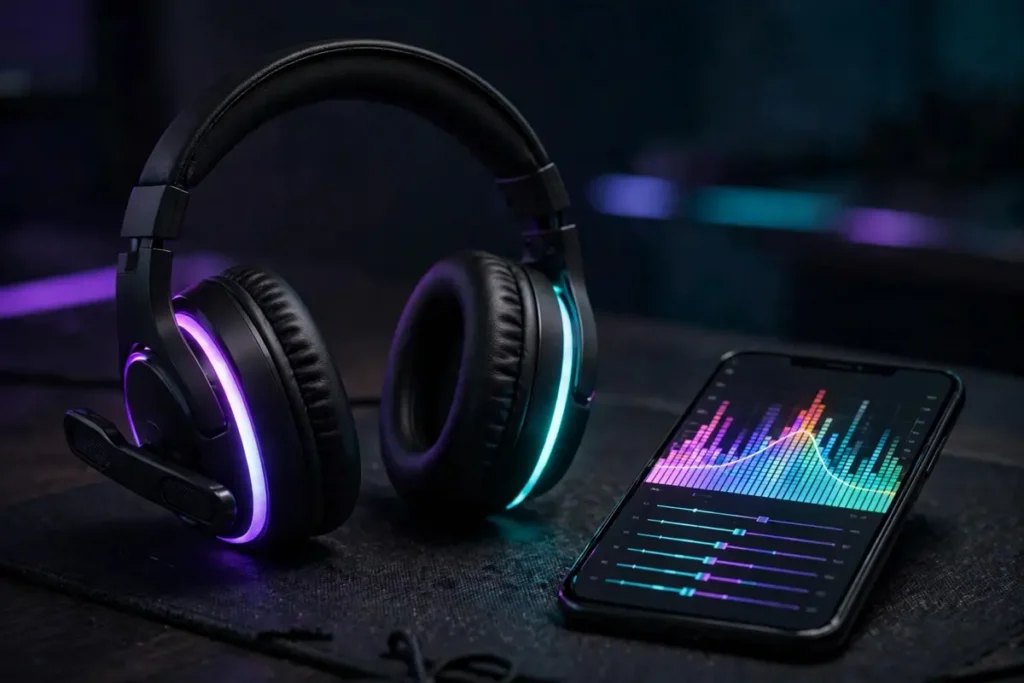
- Razer Audio app (iOS/Android): the mobile companion you use over Bluetooth. It shows battery level, handles Chroma effects, carries the Do Not Disturb toggle that stops calls breaking into game audio, and gives you a 10-band equalizer for building your Custom curve.
One honest limitation to know up front: there is only one Custom slot, and the app does not let you save a library of multiple custom presets. You get the three factory presets plus a single curve of your own. That makes choosing what your Custom slot is for — most players should dedicate it to their main competitive game — a real decision, covered in the profiles section below.
There is also a separate 7.1 Surround Sound application for PC, which can be upgraded to THX Spatial Audio for more customizable positional audio and game-tuned profiles. Treat spatial processing and EQ as two different tools: spatial widens and positions the soundstage, EQ changes the tonal balance inside it. More on combining them safely below.
Step-by-Step: Setting Up Your EQ
On PC (Razer Synapse 4)
- Install or update to Razer Synapse 4. Synapse 3 will not detect this headset for its full feature set.
- Plug the USB-C HyperSpeed dongle into your PC and power the headset on. For gaming, use this 2.4GHz connection — Razer recommends HyperSpeed over Bluetooth on PC for its lower latency and stability.
- Open Synapse and select the Barracuda X Chroma from your devices, then open the audio/EQ section.
- Play a familiar test scene — a practice range, a replay, or a track you know well — and switch between the Game, Movie, and Music presets to hear what each factory curve does.
- Select Custom, start from the closest preset’s shape, and apply the band adjustments from the tables below in small steps of 1–2 dB at a time.
- Set your microphone gain and sidetone in the microphone section while you are here — hearing a little of your own voice stops you shouting into team chat.
On Phone (Razer Audio App)
- Hold the SmartSwitch button for about 7 seconds until the LED flashes blue to enter Bluetooth pairing mode, then pair from your phone.
- Open the Razer Audio app and select the headset. Confirm the battery level shows — that tells you the app is talking to the right device.
- Open the equalizer, choose the Custom profile, and dial in your curve using the 10-band sliders.
- Toggle Do Not Disturb on if you game on the dongle while your phone is connected and do not want calls interrupting.
- Your Custom curve is stored on the headset, so it carries back to PC and console use automatically.
What Each EQ Band Actually Does
Before the recipes, here is the map. Footsteps are not one sound — the weight of a step sits low, but the detail that tells you where and how far lives in the upper mids. That single fact drives every competitive curve below.
| Range | What Lives There | EQ Character |
|---|---|---|
| Sub-bass (20–60 Hz) | Explosion rumble, deep effects | Felt more than heard; first thing to cut for clarity |
| Bass (60–250 Hz) | Gunshot body, music low end | Impact and warmth — and the main masker of quiet cues |
| Low-mids (250–500 Hz) | Footstep weight, room boom | Too much = mud; a small cut cleans everything up |
| Mids (500 Hz–2 kHz) | Voice chat, weapon sounds, footstep presence | The core gameplay range — change gently |
| Upper-mids (2–4 kHz) | Footstep detail, reload clicks, pin pulls | The competitive money range — boost here first |
| Treble (4–8 kHz) and above | Shell casings, ambient detail, air | Clarity and sparkle; overdoing it causes fatigue |
Best EQ Settings for FPS: Hearing Footsteps
For shooters like Valorant, CS2, Apex, or Warzone, the goal is not “more sound” — it is separation. Explosions and gunfire are loud and low; footsteps are quiet and detailed. Published competitive-EQ guidance converges on the same shape: trim the low end so big sounds stop masking small ones, and lift the upper mids where footstep detail and reload clicks live. Start from the Game preset, move to Custom, and apply:
| Band | FPS Adjustment | Why |
|---|---|---|
| Sub-bass / Bass | −2 to −3 dB | Stops explosion rumble masking footsteps |
| Low-mids | −1 to −2 dB | Removes indoor boom and muddiness |
| Mids | +1 to +2 dB | Lifts footstep presence and voice clarity |
| Upper-mids (2–4 kHz) | +2 to +4 dB | The footstep/reload detail range — biggest single win |
| Treble | +1 to +2 dB | Adds cue sparkle; back off if it turns harsh |
Test in a practice range or deathmatch, not a live ranked game, and change one band at a time. If footsteps are clear but the game sounds thin, restore 1 dB of bass rather than undoing the upper-mid boost — the boost is doing the competitive work.
Best EQ Settings for RPG and Cinematic Games
Single-player and story games invert the FPS priorities: here you want the weight. Razer points RPG and MOBA players at the Movie preset, and it is the right base — from there, a Custom version with a warmer low end and protected dialogue range sounds bigger without turning voices muddy:
| Band | RPG / Cinematic Adjustment | Why |
|---|---|---|
| Sub-bass / Bass | +2 to +3 dB | Weight for explosions, scores, and world ambience |
| Low-mids | 0 to −1 dB | Keeps the added bass from swamping dialogue |
| Mids | Flat (0 dB) | Dialogue and soundtrack stay natural |
| Treble | +1 dB | Environmental detail — rain, crowds, room tone |
This is also the curve to pair with the PC 7.1 Surround Sound app or the THX Spatial Audio upgrade if you use them: spatial processing plus a warm, dialogue-safe EQ is the cinematic combination. Keep the EQ gentle — heavy bass and heavy processing together is where sound turns to soup.
Best EQ Settings for Music
Start from the Music preset — it is Razer’s own listening curve — and only adjust if your library demands it. The Barracuda X Chroma’s TriForce drivers are tuned to keep highs, mids, and lows from muddying each other, so music usually needs the least surgery of the three use cases:
- General listening: leave the Music preset as-is for a session before touching anything. Most listeners who “fix” it immediately are fixing the preset they imagined, not the one they heard.
- Bass-heavy genres (hip-hop, EDM): +2 dB in the bass band only. Resist boosting sub-bass and bass together — pick one, or vocals recede.
- Vocal and acoustic genres: +1 to +2 dB in the mids for singer presence, treble flat.
- Podcasts and audiobooks on Bluetooth: a small mid lift (+1 to +2 dB) and a small bass cut (−1 dB) maximizes speech intelligibility.
Note the headset connects over Bluetooth with the standard SBC codec — there is no LDAC or aptX here — so for music, set your expectations around convenience and tuning rather than hi-res wireless. If hi-res listening is a priority alongside gaming, our guide to the best noise cancelling headphones under $100 covers LDAC-equipped alternatives at the budget end.
Saving and Managing Profiles
The four presets — Game, Movie, Music, Custom — live on the headset, and you can switch between them from the headset controls or either app, so a curve built at your desk is available on console and mobile without re-pairing anything. Managing that single Custom slot well matters more than the tuning itself:
- Dedicate the Custom slot to your main game. With only one custom curve available, spend it where hours and stakes are highest — for most players, their competitive FPS.
- Use factory presets for everything else. Movie covers RPGs and films well enough that your Custom slot rarely needs to be sacrificed for them.
- Keep a record of your curve. Since the app does not store a preset library, note your slider values somewhere — a phone note or screenshot — so a reset, a new phone, or an accidental overwrite never costs you a tuned profile.
- Re-check after firmware or app updates. Confirm your Custom values survived any update before a session, not during one.
Common EQ Mistakes to Avoid
- Installing Synapse 3 and concluding the headset is broken. The Barracuda X Chroma needs Synapse 4 for its full feature suite. This is the single most common setup dead-end with this model.
- Boosting everything. Raising every slider is just turning the volume up with extra distortion. EQ works by contrast — cuts are often the more powerful move, especially the bass cut in the FPS curve.
- Maxing the bass for footsteps. Bass is what hides footsteps. The competitive move is the opposite of the intuitive one.
- Stacking every processing layer at once. Game EQ plus a custom curve plus in-game EQ presets plus Windows sound enhancements compound unpredictably. Pick one EQ authority — the headset’s — and leave in-game audio on its default/headphone setting.
- Tuning on Bluetooth, then judging on the dongle. Build and test your gaming curve on the connection you will actually compete on: HyperSpeed 2.4GHz.
- Huge slider swings. Moves beyond about ±4 dB usually fix one problem by creating another. Work in 1–2 dB steps and re-test with the same scene.
Razer Barracuda X Chroma EQ Settings: FAQ
What are the best EQ settings for the Razer Barracuda X Chroma for FPS games?
Start from the Game preset, then build a Custom curve: cut bass by 2–3 dB, cut low-mids by 1–2 dB, boost the mids slightly, and boost the 2–4 kHz upper-mid range by 2–4 dB where footstep detail and reload clicks live. Add 1–2 dB of treble only if cues still lack sparkle.
Does the Barracuda X Chroma work with Razer Synapse 3?
No — Razer confirms the headset is only supported on Razer Synapse 4 for its full suite of features and customization. If it does not appear in Synapse 3, install Synapse 4. On mobile, use the Razer Audio app instead.
How many custom EQ profiles can I save on the Barracuda X Chroma?
One. The headset stores four onboard presets — Game, Movie, Music, and a single Custom slot that you personalize in the Razer Audio app or Synapse 4. There is no multi-preset library, so keep a note of your slider values as a backup.
Which preset should I use for RPGs and movies?
Razer recommends the Movie EQ for MOBAs, RPGs, and watching movies. For a warmer cinematic custom version, add 2–3 dB of bass, keep the mids flat so dialogue stays clear, and add about 1 dB of treble for environmental detail.
Should I use the 7.1 Surround Sound or THX Spatial Audio with my EQ?
You can — they do different jobs. The included 7.1 Surround Sound app (PC) handles positional audio, and THX Spatial Audio is an optional upgrade with game-tuned profiles. Keep your EQ adjustments gentle when spatial processing is on, and do not stack in-game EQ presets on top of both.
Do my EQ settings carry over between PC, console, and phone?
Yes. The four presets, including your Custom curve, are stored on the headset itself, so they follow it between the HyperSpeed dongle connection and Bluetooth. Tune once, and the curve travels with the headset.

I am the founder of Sound Mavericks, where I provide the polite truth about audio equipment. I started this site because consumer electronics reviews are often too technical. Instead of using a silent lab, I test headphones, earbuds, and Bluetooth speakers in the real world – like on a noisy subway or in a busy coffee shop.
To stay independent, I buy my own review units (mostly from the United States) rather than accepting free gifts from brands. Once I finish testing a product, I sell it locally to our community. My goal is to help you understand sound quality, active noise cancellation (ANC), and battery life without the marketing hype.