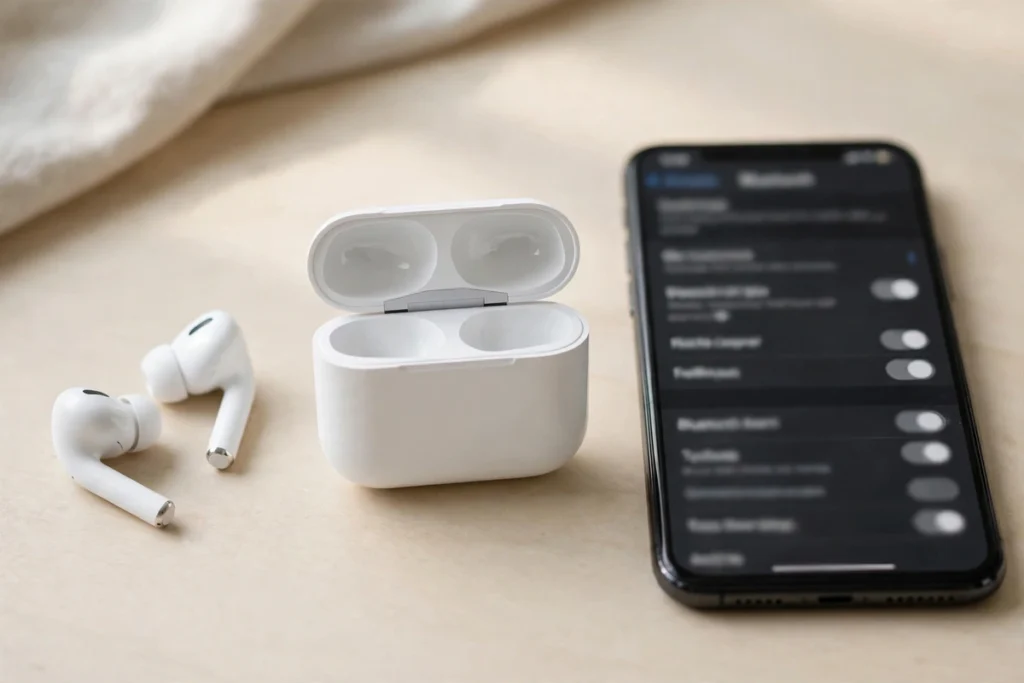
Put the earbuds in pairing mode (usually: open the case, or hold the case button until the light flashes), then open Bluetooth settings on your phone or computer and tap the earbuds’ name in the list. That is the whole process. Everything below is the detail: pairing mode by brand, the exact menu paths for Android, iPhone, Windows and Mac, and what to do when the earbuds refuse to show up.
Pairing fails for a small set of repeatable reasons. The buds were not actually in pairing mode, they had already connected to another device nearby, or the battery was too low to start pairing. Work through the sections in order and you will hit your problem quickly.
The basic method, for any earbuds
- Charge first. Ten minutes in the case is enough. Most earbuds will not enter pairing mode on a nearly flat battery.
- Start pairing mode. On most models, opening the case with the buds inside does it. The case or earbud light flashes, commonly blue and white or pulsing white.
- Open Bluetooth settings on the device you want to connect and wait on that screen. The earbuds only stay visible for a few minutes at a time.
- Tap the earbuds’ name when it appears in the list and confirm any prompt. Play a song to check both buds are working.
How to make earbuds discoverable: pairing mode by brand
Discoverable is the same thing as pairing mode. Earbuds are only visible to new devices while they are in it, and each brand starts it differently. Find yours:
| Brand | How to start pairing mode |
|---|---|
| Apple AirPods and Beats | Buds in the case, lid open, hold the case near the device. For a non-Apple device, press the button on the back of the case until the light flashes white. |
| Samsung Galaxy Buds | Close the case with the buds inside, wait a few seconds, reopen it. Or put the buds in your ears and hold both touchpads for about 3 seconds until you hear a beep. |
| Google Pixel Buds | Buds in the case, lid open, hold the button on the back of the case for about 3 seconds until the status light pulses white. |
| Sony | Buds in the case, hold the case button for about 5 seconds. Models without a case button: wear the buds and hold the touch sensor on each side at the same time. |
| JLab | Take the buds out of the case. They enter pairing mode on their own; one bud flashes blue and white when they are ready. |
| Bose | Open the case and hold the Bluetooth button inside it until the earbud status lights blink blue. |
| Soundcore | Open the lid with the buds inside. If they do not appear, hold the case button for about 3 seconds until the lights flash. |
| JBL | Open the case or take the buds out. Most JBL models start pairing mode automatically; if nothing shows up, tap and hold one bud for about 5 seconds. |
No case button and no flashing light? Check the brand’s app. Sony, JLab, Soundcore and JBL all have a pairing or device-registration option inside their apps, and it works even when the button method fails.
How to pair earbuds with an Android phone
- Start pairing mode on the earbuds (see the table above).
- Open Settings, then Connected devices on a Pixel or Connections on a Samsung, then Bluetooth.
- Tap Pair new device and wait on the list.
- Tap the earbuds’ name. On Samsung phones you may get a pop-up asking you to confirm the pairing; accept it.
Fast Pair: many Android earbuds, including Pixel Buds and most current Sony, JBL and JLab models, support Google Fast Pair. Open the case near your phone with the screen on and a card slides up with the earbuds’ picture. Tap Connect and skip the settings menus entirely. If the card never appears, pair through Settings instead; the result is identical.
How to pair earbuds with an iPhone
- Start pairing mode on the earbuds.
- Open Settings, then Bluetooth, and make sure Bluetooth is on.
- Stay on that screen. When the earbuds appear under Other Devices, tap the name.
- The status changes to Connected. If iOS asks whether to share contacts or notifications, either choice is fine; neither affects pairing.
AirPods and most Beats models shortcut this: open the lid near the iPhone and an animation offers a Connect button. Third-party earbuds do not get the animation, but they pair the same way through the list.
How to pair earbuds with Windows
- Start pairing mode on the earbuds.
- Open Settings, then Bluetooth & devices, then Add device, then Bluetooth.
- Click the earbuds’ name when it appears. Windows confirms with “Your device is ready to go.”
- Check the output device in the volume panel; Windows sometimes leaves sound on the speakers after a first pairing.
Some earbuds trigger a Swift Pair notification in the corner of the screen instead, which saves the settings trip. PCs add their own failure modes on top of this (old Bluetooth adapters, earbuds that connect for music but not calls), and our separate guide on how to pair earbuds to a PC covers the Windows-specific fixes in depth.
How to pair earbuds with a Mac
- Start pairing mode on the earbuds.
- Open System Settings (called System Preferences on older macOS), then Bluetooth.
- Find the earbuds under Nearby Devices and click Connect.
- If sound still comes from the Mac’s speakers, pick the earbuds in the Sound section of System Settings or from the volume icon in the menu bar.
Chromebooks and TVs, briefly
On a Chromebook, click the time in the bottom-right corner, open the Bluetooth section, choose Pair new device, and tap the earbuds’ name. On a smart TV, look for Bluetooth in the sound or accessories settings; the menu name varies by brand (Samsung calls it Sound Output, LG puts it under Sound Out). The earbuds side of the process never changes: pairing mode on, name tapped, done.
Google earbuds: pairing Pixel Buds
Pixel Buds are the earbuds people most often mean by “google bluetooth earbuds,” and they pair two ways. With an Android phone, open the case near the phone and use the Fast Pair card. With anything else (iPhone, Windows, Mac), do it manually: buds in the case, lid open, hold the button on the back of the case for about 3 seconds until the light pulses white, then select Pixel Buds in the device’s Bluetooth list. To pair a second device later, repeat the button hold. The buds do not need to be unpaired from the first device first.
JLab earbuds: pairing notes
JLab buds are simpler than most. Take them out of the case and they pair to each other first, then one bud flashes blue and white, which means they are ready to pair with your phone. Select the model name (for example, JLab GO Air Pop) in the Bluetooth list. Two JLab-specific snags: if only one bud connects, put both back in the case, close the lid for 30 seconds, and try again, since the buds occasionally lose track of each other. And if a JLab bud’s light stays solid instead of flashing, it is already connected to a device nearby, usually the last phone or laptop it was used with.
How to pair earbuds with a second device
Most earbuds remember several devices but hold only one live connection. Pairing a second device works like this:
- Disconnect the earbuds from the first device, or switch that device’s Bluetooth off for a minute.
- Start pairing mode again, exactly as you did the first time.
- Pair the second device from its Bluetooth menu.
After that, the earbuds connect to whichever known device reaches them first when you open the case. To switch, pick them manually from the Bluetooth menu of the device you want. The classic trap: you open the case to pair your phone, and the earbuds silently connect to your laptop in the next room. Turn the laptop’s Bluetooth off during pairing and the problem goes away.
Earbuds with Bluetooth multipoint hold two live connections at once, so they can sit on your laptop and phone together and switch when a call comes in. On those models, pair the first device normally, then start pairing mode again (some brands use a toggle in their app) and pair the second device without disconnecting the first.
Earbuds not showing up? Work through this list
- Charge them. Pairing mode needs power. Fifteen to twenty minutes in the case fixes more “broken” earbuds than any setting.
- They are already connected somewhere else. Earbuds auto-connect to their last device. A tablet in another room can hold the connection and keep the buds out of your phone’s list. Switch Bluetooth off on the old device, or forget the earbuds there.
- Pairing mode timed out. It only lasts a few minutes. Close the case, count to ten, reopen it, and search again straight away.
- Stay close. Pairing works best within a metre, with the case open and next to the device.
- Restart the connection. Toggle Bluetooth off and on. Still nothing? Switch airplane mode on and off, then restart the phone or computer. This clears stuck Bluetooth lists on both Android and iOS.
- Only one bud connects. The two buds have lost sync with each other. Both buds in the case, lid closed for 30 seconds, then reopen and pair again. If it repeats, reset them (next section).
Paired, but the sound lags behind the video or calls sound thin? That is a codec and connection problem rather than a pairing one. Our explainer on Bluetooth audio codecs covers why it happens and which settings change it.
How to reset earbuds that will not pair
A factory reset wipes the pairing memory and fixes the stubborn cases: buds that will not enter pairing mode, buds stuck on an old device, pairs where one side never connects.
- Put both earbuds in the case and charge for 10 minutes.
- On every device they were paired with, open Bluetooth settings and choose Forget or Remove for the earbuds.
- With the lid open, hold the case button for 10 to 30 seconds, until the light changes pattern. Most brands flash red or amber, then white. Models without a case button use a touch-sensor hold instead; the brand’s app also has a factory reset option in its settings on Sony, JLab, Soundcore and JBL models.
- Close the lid for 30 seconds.
- Reopen and pair again as if the earbuds were new.
Exact hold times and light colours differ by brand, so if your model ignores the button hold, the manual’s reset page is the authority. The sequence above, though, is the same everywhere: forget everywhere, reset the buds, pair fresh.
FAQ
How do I make my Bluetooth earbuds discoverable?
Put them in pairing mode. On most earbuds that means opening the case with the buds inside; others need a hold on the case button until the light flashes. Earbuds are only discoverable while they are in pairing mode, and the window lasts a few minutes, so open your device’s Bluetooth list right after starting it.
Why won’t my earbuds appear in the Bluetooth list?
The three usual causes: the battery is too low to start pairing mode, the earbuds are already connected to another device nearby, or pairing mode timed out before you searched. Charge for 15 minutes, switch Bluetooth off on other devices, close and reopen the case, then search again with the earbuds next to the phone.
Can I pair my earbuds with two devices at once?
Only earbuds with Bluetooth multipoint hold two live connections at the same time. Standard earbuds can be paired with many devices but connect to one at a time; you switch by selecting them in the Bluetooth menu of the device you want, after disconnecting or disabling Bluetooth on the current one.
Why does only one earbud connect?
The left and right buds have lost sync with each other, which happens when one bud runs flat or is taken out of the case much later than the other. Put both buds back in the case, close the lid for 30 seconds, then take them out together and pair again. If it keeps happening, do a factory reset.
How do I pair my earbuds with a new phone?
Put the earbuds in pairing mode and pair the new phone from its Bluetooth menu. For a clean handover, also forget the earbuds on the old phone; otherwise they may reconnect to it whenever it is in range. The earbuds keep their other pairings in memory, so you can still switch back later.
Do I have to pair each earbud separately?
No. You pair once, using the single entry that appears in the Bluetooth list, and both earbuds connect together. If you see two similar entries, the buds are probably not synced with each other. Put both back in the case, close the lid for 30 seconds, reopen it, and pair using the one entry that appears.

I am the founder of Sound Mavericks, where I provide the polite truth about audio equipment. I started this site because consumer electronics reviews are often too technical. Instead of using a silent lab, I test headphones, earbuds, and Bluetooth speakers in the real world – like on a noisy subway or in a busy coffee shop.
To stay independent, I buy my own review units (mostly from the United States) rather than accepting free gifts from brands. Once I finish testing a product, I sell it locally to our community. My goal is to help you understand sound quality, active noise cancellation (ANC), and battery life without the marketing hype.