Pairing earbuds to a PC takes about two minutes when everything goes right — and an hour of frustrated clicking when it does not. The difference is almost always one of three things: the earbuds were never actually in pairing mode, Windows connected them as a low-quality hands-free headset instead of a stereo device, or the PC has no Bluetooth radio at all. This guide walks through how to pair earbuds to PC the clean way on Windows 11 and Windows 10, then fixes the two problems gamers hit afterwards: audio latency and the microphone quality trap.
What You Need Before You Start
You need charged earbuds, a PC with Bluetooth switched on, and — for a desktop with no built-in Bluetooth — a USB adapter. If latency matters for gaming, a dongle-based earbud skips Bluetooth lag entirely. Two verified picks cover both gaps:
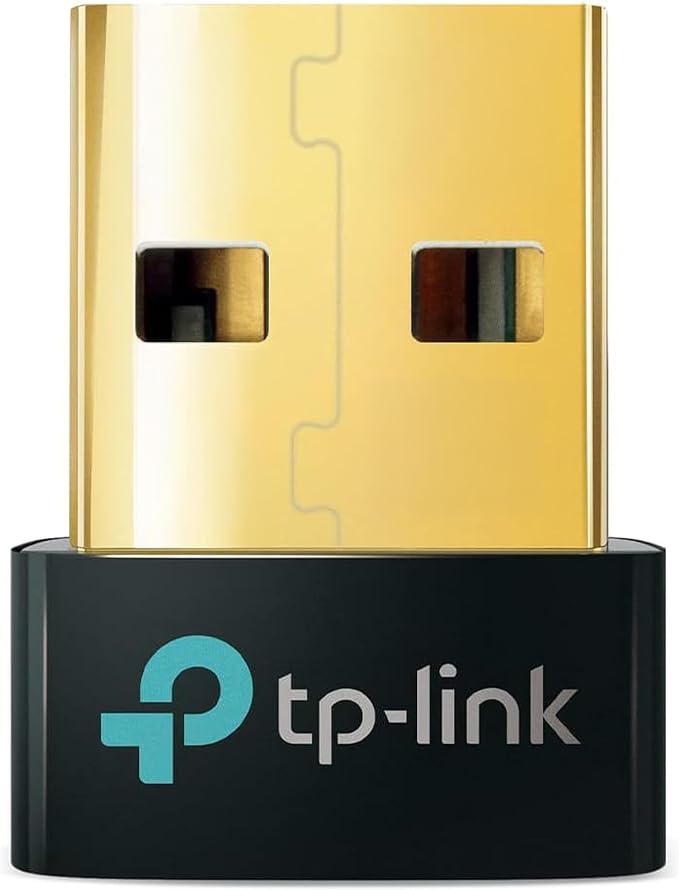
- No Bluetooth on your PC? The TP-Link UB500 USB Bluetooth Adapter adds Bluetooth 5.4 from a spare USB port — plug and play on Windows 11 and 10.
- Want gaming-grade low latency? The SteelSeries Arctis GameBuds connect over a 2.4GHz USB-C dongle as well as Bluetooth 5.3, so game audio and voice chat stay in sync.
Step 1: Put Your Earbuds in Pairing Mode
Pairing mode is the step most guides rush and most failed connections trace back to. Earbuds fresh out of the case are usually just on — and often already connected to your phone. A PC cannot see them until they are actively advertising themselves as available to pair.
The generic method works for most true wireless earbuds:
- Charge the case first. Low battery is a common reason earbuds drop out of pairing mode before Windows finishes connecting.
- Disconnect the earbuds from your phone, or switch the phone’s Bluetooth off. Most earbuds reconnect to their last device automatically and will ignore a new PC while busy elsewhere. Multipoint models are the exception — our explainer on what Bluetooth multipoint is covers how they juggle two devices.
- Put both earbuds in the case, leave the lid open, and hold the button on the case until the LED flashes in a pairing pattern — typically pulsing white, or alternating colours. That flashing light, not the power-on light, means discoverable. Keep the case open and near the PC; some models exit pairing mode when the lid closes.
Brand notes: AirPods pair by opening the case near the PC and holding the setup button on the back until the light flashes white. Galaxy Buds usually enter pairing mode when an unpaired case opens; if not, hold both earbuds until you hear a beep. Sony earbuds pair automatically the first time, and afterwards via a long press on the case button or both touch sensors. Jabra and many others use a dedicated case button. If none of that matches, search the manual for “pairing mode” — every brand buries the exact gesture there.
Step 2: How to Connect Bluetooth Earbuds to Computer on Windows 11
- Open Settings (press Windows key + I) and select Bluetooth & devices.
- Make sure the Bluetooth switch is On. If there is no Bluetooth switch at all, your PC has no Bluetooth radio — skip to the adapter section below.
- Select Add device, then choose Bluetooth in the window that appears.
- Select your earbuds when they appear in the list. Their name is the model name, sometimes followed by “LE” — pick the entry without “LE” if both show.
- Wait for Windows to confirm the device is ready, then select Done. Under the earbuds’ name in Settings you should see Connected, voice and music — that wording matters, and the troubleshooting section explains why.
If the earbuds never appear, open Bluetooth & devices > Devices and set Bluetooth devices discovery to Advanced, then try again. Also confirm Airplane mode is off.
Connect Bluetooth Headphones With Swift Pair in Windows 11
Swift Pair is the shortcut version. When a supported earbud is nearby and in pairing mode, Windows 11 shows a notification offering to connect — select Connect and pairing completes without opening Settings. Not every earbud supports it, so if no notification appears after ten seconds, use the Settings route above.
Step 3: How to Connect Bluetooth Headphones to Windows 10
Windows 10 hides Bluetooth in a slightly different place, but the flow is the same:
- Put the earbuds in pairing mode first, using Step 1.
- Open Start > Settings > Devices > Bluetooth & other devices.
- Switch Bluetooth to On.
- Select Add Bluetooth or other device, then choose Bluetooth.
- Select your earbuds in the list and follow any prompts until Windows reports pairing is complete.
You can also toggle Bluetooth from the Bluetooth tile in Action Centre (the speech-bubble icon at the far right of the taskbar). Pairing is a one-time job on both Windows versions: afterwards, the earbuds should reconnect automatically whenever they come out of the case near the PC with Bluetooth on.
Step 4: Select the Right Output and Input Devices
Pairing connects the earbuds; it does not guarantee Windows is sending sound to them, or taking your voice from the right microphone. Set both explicitly:
- Open Settings > System > Sound.
- Under Output, select your earbuds — the entry labelled Headphones or Stereo, not Hands-Free (that distinction is the whole section after next).
- Under Input, choose deliberately. The earbuds’ built-in mic is convenient, but read the hands-free warning below before making it your gaming default.
- Check per-app overrides: Discord, Zoom, Teams and most launchers keep their own speaker and microphone choices. If a game is silent while YouTube plays fine, that app is usually pointed at a different device, not broken. Windows’ Volume mixer (Settings > System > Sound > Volume mixer) shows each app’s devices individually.
What If Your PC Has No Bluetooth?
Most laptops ship with Bluetooth; many desktop PCs — especially custom gaming builds — do not. The clue is a Settings page with no Bluetooth switch and no Bluetooth category in Device Manager. The fix is a USB Bluetooth adapter, and it takes under a minute:
- Plug the adapter into a USB port — a front-panel port, or a short USB extension cable, gives the radio a clearer path than a rear port behind a metal case.
- On Windows 11 and 10, adapters like the TP-Link UB500 install themselves; wait for the Bluetooth switch to appear in Settings. If your PC has a weak or faulty internal Bluetooth radio, disable it in Device Manager first so the two radios do not fight.
- Pair your earbuds using the normal steps above.
One honest limitation: a standard Bluetooth adapter does not fix gaming latency or the microphone problem below, because both come from Bluetooth itself, not radio strength. It simply gives a Bluetooth-less PC the connection every laptop already has.
Can You Use Wireless Earbuds for PC Gaming?
Yes — with one caveat you will feel in the first firefight: latency. Bluetooth audio is encoded, transmitted and decoded, and that pipeline takes time. Standard SBC, the codec every Bluetooth device falls back to, typically adds enough delay that gunshots, footsteps and dialogue visibly trail the action. Video apps hide this by delaying the picture to match; games cannot, because the picture is your input.
Your options, in order of how well they work:
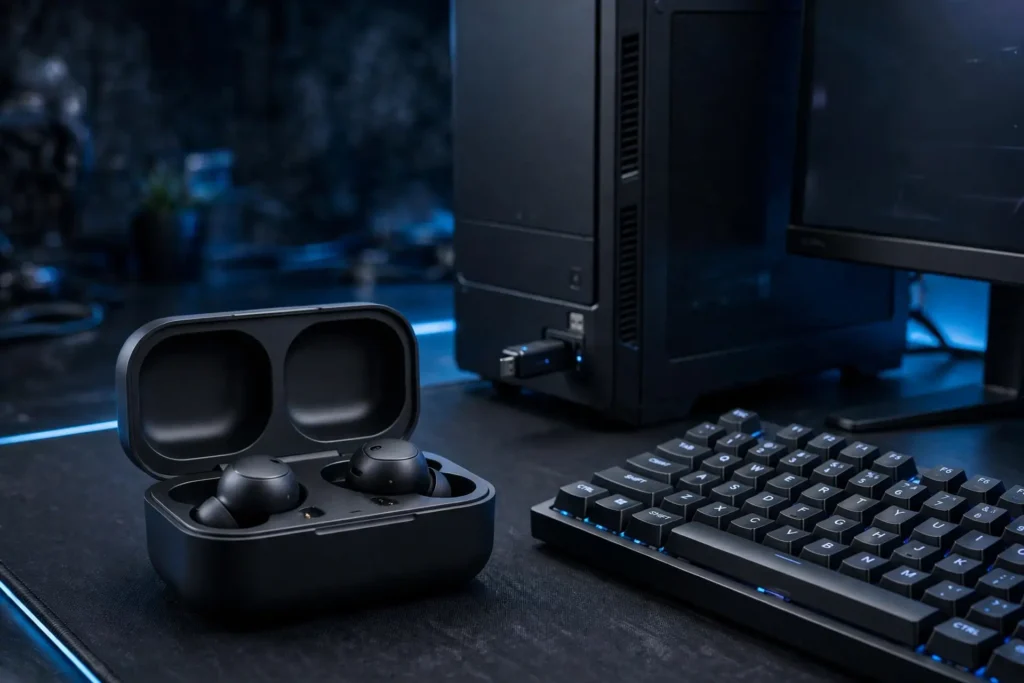
- A 2.4GHz USB dongle is the real fix. Gaming earbuds such as the SteelSeries Arctis GameBuds and the Razer Hammerhead Pro HyperSpeed ship with a USB-C dongle running a private low-latency link instead of Bluetooth. Plug it in and Windows treats it as a USB audio device — no pairing needed for PC play, while Bluetooth still covers your phone.
- Low-latency Bluetooth codecs help where both ends support them, but Windows support is patchy — most PCs negotiate SBC or AAC regardless of what the earbuds can do. Our guide to Bluetooth codecs explained: AAC vs LDAC vs aptX breaks down what each codec delivers.
- Game Mode in the earbud app trims processing and can cut delay noticeably. Worth enabling, but it narrows Bluetooth’s gap rather than closing it.
- Reduce interference and distance. Bluetooth shares the crowded 2.4GHz band with Wi-Fi and USB 3 devices. Sit within a few metres of the PC, keep the adapter out from behind a metal case, and put your Wi-Fi on its 5GHz band to reduce stutter and delay spikes.
The Hands-Free Trap: Why Your Game Suddenly Sounds Terrible
This is the single most common PC earbud complaint, and it is a Bluetooth design limit, not a fault. Bluetooth carries listening audio through the high-quality stereo profile (A2DP). The moment any app opens the earbuds’ microphone — Discord, in-game voice chat, a meeting — Windows switches to the hands-free profile (HFP), designed for phone calls. Bandwidth is split between microphone and ears, and game audio collapses into thin, mono, telephone-grade sound.
How to avoid it:
- Use a separate microphone. Set Windows and Discord’s input to any other mic — USB, webcam, even a cheap wired lavalier — and leave the earbuds’ output on the Stereo entry. The mic never opens, HFP never engages, and game audio stays full quality. This is the standard workaround, and it costs nothing if you already own any microphone.
- Force the Stereo output. In Settings > System > Sound, make sure output is the Stereo/Headphones entry, and in Discord’s Voice & Video settings, set the output device explicitly instead of Default.
- Use dongle earbuds for voice gaming. A 2.4GHz dongle link is not Bluetooth, so it carries game audio and microphone together without the HFP downgrade — the other reason the GameBuds-style design exists.
- Accept HFP only for calls. For a work meeting where only voices matter, hands-free mode is fine. The trap is letting it become your gaming configuration by accident. And if you are wondering whether you need a separate microphone with your earbuds at all: for voice gaming, the separate mic is precisely what keeps you out of this trap — for listening only, you do not need one.
Quick Comparison: Your Three Connection Options
| Option | Best for | Latency & mic behaviour | Buy |
|---|---|---|---|
| TP-Link UB500 USB Bluetooth Adapter | Desktops with no Bluetooth | Standard Bluetooth latency; HFP trap still applies | Check Price |
| SteelSeries Arctis GameBuds | PC gaming with voice chat | 2.4GHz dongle for gaming plus Bluetooth 5.3; no HFP downgrade over the dongle | Check Price |
| Razer Hammerhead Pro HyperSpeed | Cross-platform gaming (PC, console, mobile) | HyperSpeed 2.4GHz USB-C dongle plus Bluetooth 5.3; adjustable ANC | Check Price |
Troubleshooting: When Pairing Fails or Audio Misbehaves
Work through these in order — most common fix first.
- Earbuds do not appear in the device list. They are not in pairing mode, or they are connected to your phone. Switch the phone’s Bluetooth off, return the earbuds to the case, and trigger pairing mode again, watching for the flashing LED.
- Remove and re-pair. In Settings > Bluetooth & devices, select the earbuds, choose Remove device, then pair again from Step 2. This clears corrupted pairings and forces a fresh codec negotiation — it fixes most “connected but no sound” and one-earbud-only cases. If only one bud plays, first return both buds to the case for ten seconds so they re-sync with each other.
- “Connected” but no audio. Set the Stereo entry as output in Settings > System > Sound, and check the per-app mixer and your chat app’s own device settings.
- Audio sounds like a phone call. That is the hands-free profile. Apply the fixes above: separate microphone, Stereo output forced, input set explicitly in Discord or your game.
- Update the Bluetooth driver. Open Device Manager > Bluetooth, right-click your adapter, and choose Update driver. Better still, download the current driver from your laptop, motherboard or adapter manufacturer’s site — Windows’ built-in driver is often generations old. Restart afterwards.
- Stuttering and dropouts. Move closer, plug adapters into a front port or extension cable rather than the rear of a metal case, and keep USB 3 drives and cables away from the adapter — USB 3 is a known source of 2.4GHz interference. Putting your Wi-Fi devices on 5GHz also thins out the band.
- Still stuck? Restart both devices, toggle Bluetooth off and on, and check Windows Update. For competitive play, the simplest upgrade of all is a dongle earbud — see our roundup of the best gaming earbuds under $100.
Frequently Asked Questions
How do I put my earbuds in pairing mode for a PC?
Charge the case, disconnect the earbuds from your phone or turn its Bluetooth off, then place both earbuds in the case with the lid open and hold the case button until the LED flashes in a pairing pattern — that flashing light means discoverable. AirPods use the setup button on the back of the case; most other brands use a case button or a long press on both earbuds.
Why does Windows say “Connected, voice” but play no music?
Windows has connected the earbuds in hands-free mode only, or the stereo output is not selected. Open Settings > System > Sound and choose the Headphones/Stereo entry as output. If the earbuds show only a voice connection, remove the device in Bluetooth settings and pair again so both profiles connect.
How do I pair earbuds to a PC without Bluetooth?
Add a USB Bluetooth adapter. Plug it into a USB port, let Windows install it automatically, then pair through Settings > Bluetooth & devices exactly as you would on a laptop. If the PC has an existing faulty internal Bluetooth radio, disable it in Device Manager first to avoid conflicts.
Why do my earbuds sound bad when I join Discord on PC?
Opening the earbuds’ microphone forces Bluetooth into the hands-free profile (HFP), which drops game audio to mono, telephone-grade quality. Fix it by using a separate microphone for input while keeping the earbuds’ Stereo entry as output, or by using earbuds with a 2.4GHz USB dongle, which is not subject to the Bluetooth profile switch.
Can I connect earbuds to my PC and phone at the same time?
Only if the earbuds support Bluetooth multipoint, which holds two connections and switches as audio starts. Without multipoint, disconnect from the phone before pairing to the PC, or the earbuds will keep reconnecting to the phone and never appear for the PC.
Why is there a delay between the video and the sound on my PC?
Bluetooth encoding adds latency — SBC, the universal fallback codec, is the slowest common option, which is why your earbuds lag on videos and games alike. Video players usually compensate by delaying the picture, but games cannot. Reduce it by enabling Game Mode, staying close to the PC, or switching to earbuds with a 2.4GHz USB dongle for genuinely low-latency audio.

I am the founder of Sound Mavericks, where I provide the polite truth about audio equipment. I started this site because consumer electronics reviews are often too technical. Instead of using a silent lab, I test headphones, earbuds, and Bluetooth speakers in the real world – like on a noisy subway or in a busy coffee shop.
To stay independent, I buy my own review units (mostly from the United States) rather than accepting free gifts from brands. Once I finish testing a product, I sell it locally to our community. My goal is to help you understand sound quality, active noise cancellation (ANC), and battery life without the marketing hype.